
Before you start
Choose the presentation setup. Review the current Tapquence screen and the requirements above before changing anything.
- Presentation source
- Trusted supporting pages
- Short test session
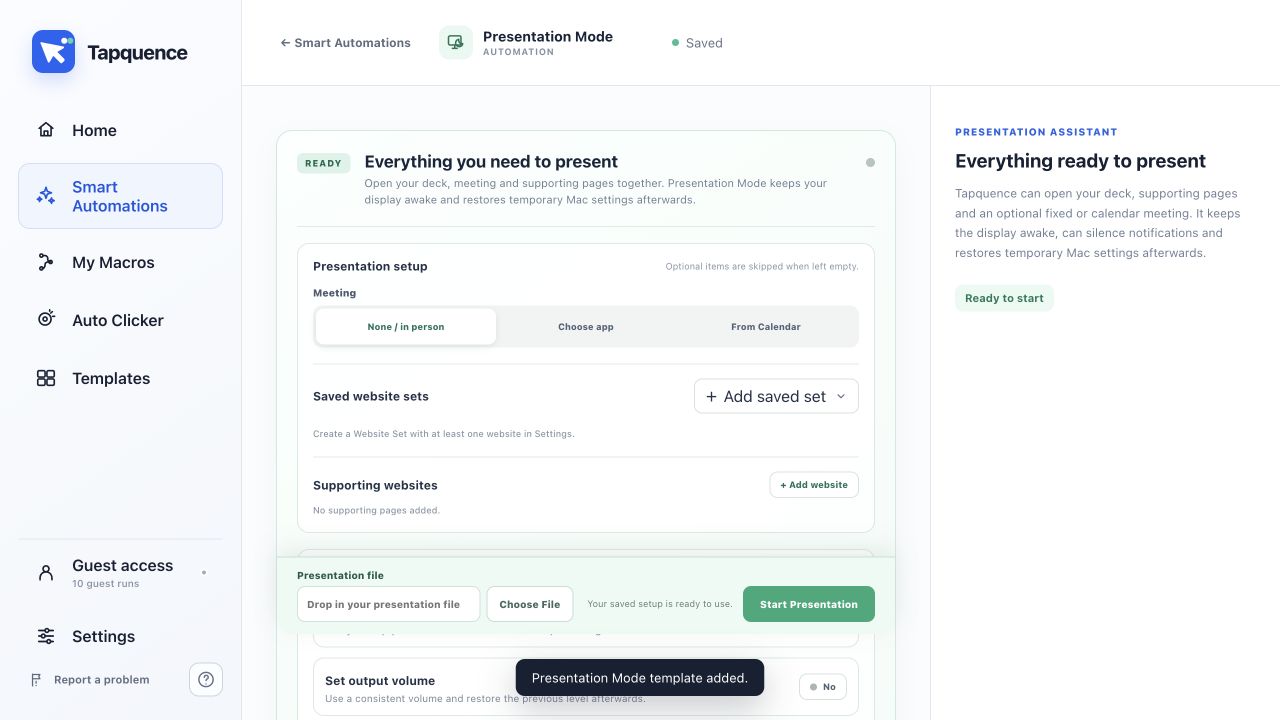
Configure resources
Presentation Mode prepares your Mac when a real slideshow starts. Simply editing slides should not trigger it, and Tapquence asks for approval before changing presentation settings.
Quick answer
Configure Presentation Mode, enable detection and start a supported slideshow. Approve the Tapquence prompt to keep the display awake and reduce interruptions until the presentation ends.
1. Configure Presentation Mode
Open Smart Automations and choose Presentation Mode. Review the available interruption and display options before enabling detection.
2. Start a real slideshow
Tapquence distinguishes active presentation playback from ordinary editing where possible. Supported contexts can include Keynote, PowerPoint, Figma presentations and browser-based slide playback.
3. Approve the prompt
A small Tapquence prompt appears above the presentation or in the presenter area when available. Nothing changes until you approve it.
4. Finish the presentation
When slideshow playback ends, Tapquence restores the previous display and interruption settings it changed for the session.
Test the result
Run the smallest useful example once and verify the result before enabling repetition or relying on the complete workflow.
Troubleshoot
Confirm the installed app, target, folder or meeting is the one described in this guide.
Reduce the workflow to the smallest failing action and change only one setting at a time.
Use harmless data, add more time where needed and keep the stop control available.
Continue learning
Continue with the matching Tapquence feature or move through the guide sequence.
View Presentation ModeSee how this guide connects to the actual workflow.›