
Before you start
Choose meeting settings. Review the current Tapquence screen and the requirements above before changing anything.
- Supported test call
- Conservative settings
- Restoration check
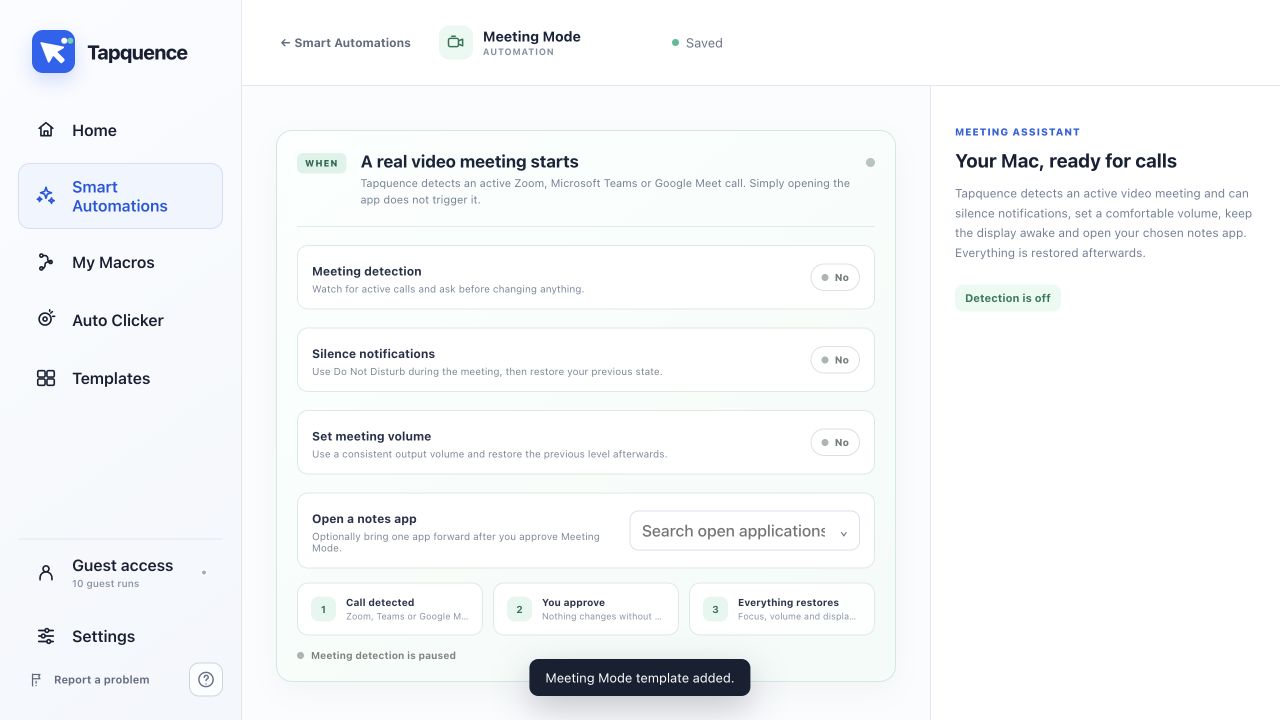
Enable detection
Meeting Mode prepares your Mac when an active video call begins. Opening Zoom, Microsoft Teams or a browser tab alone should not be enough; Tapquence looks for an active call and asks before changing anything.
Quick answer
Configure Meeting Mode, choose notification, volume and notes options, then enable detection. Approve the prompt when a real call starts.
1. Enable meeting detection
Open Smart Automations and select Meeting Mode. Switch detection on only after reviewing the settings.
2. Choose interruption behaviour
Decide whether Meeting Mode should use Do Not Disturb or your configured Focus workflow during the call.
3. Set a meeting volume
Choose whether Tapquence should set a consistent output volume. The previous level is restored after the call where supported.
4. Choose an optional notes app
Select a notes application if you want it brought forward after approving Meeting Mode. Leave the option set to None when you do not need it.
5. Test restoration
Join a short test call, approve the prompt and then end the call. Confirm that Focus, display and volume return to their previous state.
Test the result
Run the smallest useful example once and verify the result before enabling repetition or relying on the complete workflow.
Troubleshoot
Confirm the installed app, target, folder or meeting is the one described in this guide.
Reduce the workflow to the smallest failing action and change only one setting at a time.
Use harmless data, add more time where needed and keep the stop control available.
Continue learning
Continue with the matching Tapquence feature or move through the guide sequence.
View Meeting ModeSee how this guide connects to the actual workflow.›