ABOUT TAPQUENCE
More room for the conversation.
Tapquence brings meeting support, local notes and practical Mac automations together. Spend less attention on the setup and more on the people in the call.
Built for macOS · You choose when to record
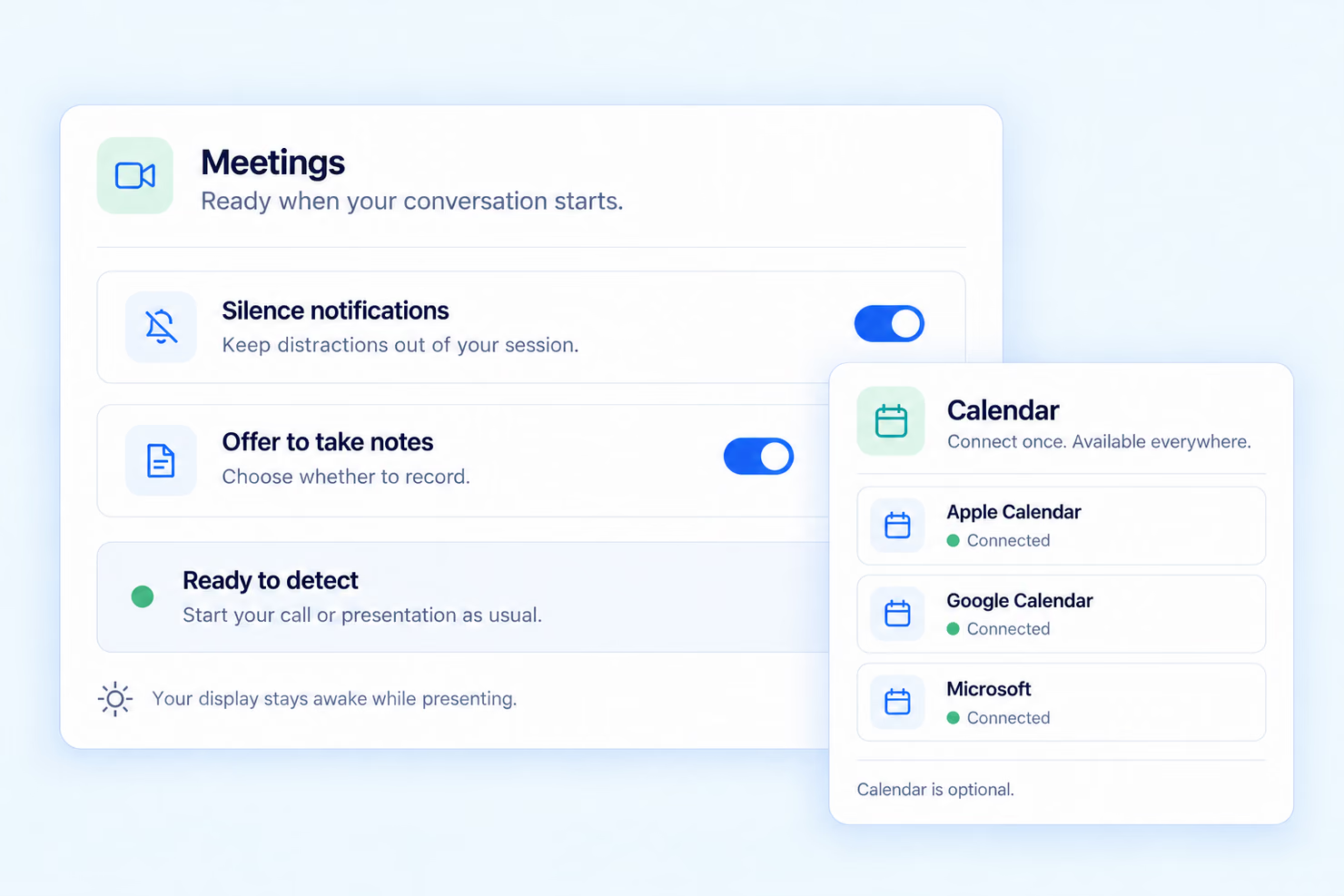
Your familiar apps
Start your call or presentation as usual. Tapquence supports recognized sessions around the way you already work.
Your recording choice
Notes are optional. Recognizing a meeting never starts an audio recording on its own.
Your review comes first
Return to the audio, transcript and available recap. Check important details before you share.
WHY WE BUILD
The useful part of a conversation is often the context: the question behind a decision, the slide being discussed, or the next step that needs an owner.
We build Tapquence around keeping that context useful. Supported presentation sessions can group spoken notes by slide, so it is easier to revisit the discussion around each part of a presentation. Review the original conversation when a detail matters.
Explore presentation support →
PRESENTATION NOTES
Spoken notes, grouped by slide.
Slide 1
Spoken notes for this part of the presentation.
Slide 2
Review the conversation alongside its slide marker.
Transcript · Audio · Available recap
LOCAL NOTES, DELIBERATE SHARING
Taking notes should leave you with a record you can inspect. Tapquence keeps a session’s audio, transcript and recap together, with transcription processed locally on your Mac after the speech model is prepared.
An optional calendar connection can add meeting context. You can also start a standalone recording without connecting a calendar. Sharing stays a separate step: review the result, choose the recipients and send through your own mail app.
Read about notes and transcription →
Read our privacy policy →
01
Choose to record
Start notes deliberately. Recording needs macOS 15 or later and the required permissions.
02
Process on your Mac
Prepare the speech model once, then transcribe locally. The initial model download needs a connection.
03
Review, then share
Recording and transcription stay on your Mac. Written recaps use Apple Cloud Pro through the supplied Shortcut on a compatible Apple Intelligence Mac running macOS 27 or later, with internet access. Import the Shortcut once and explicitly allow transcript text to be sent to Apple before a recap is created. Apple Intelligence availability and daily usage limits apply, including on Unlimited. Recordings and transcripts remain available when written recaps are unavailable.
SUPPORTING YOUR WORKING DAY
The work around a call matters too. Tapquence also helps with the small, repeated actions that fill the rest of your day.
Workday Launcher
Open a chosen set of apps and websites for your working day. Keep your starting routine ready to run.
Explore Workday Launcher →
Visual Macros
Build and review sequences of clicks, text, shortcuts and waits. Start small, test a pass and refine the actions you need.
Explore Visual Macros →
Screenshot Organizer
Give screenshots a consistent destination and naming pattern. Keep the files around your work easier to find.
Explore Screenshot Organizer →
For a focused clicking task, explore Auto Clicker →
Explore Meetings, try the workflow on your Mac and tell us where it could work better for you.
5 free recaps to start · No card required
