
Before you start
Use the installed Tapquence app. Review the current Tapquence screen and the requirements above before changing anything.
- Tapquence in Applications
- Administrator access
- Tapquence closed first
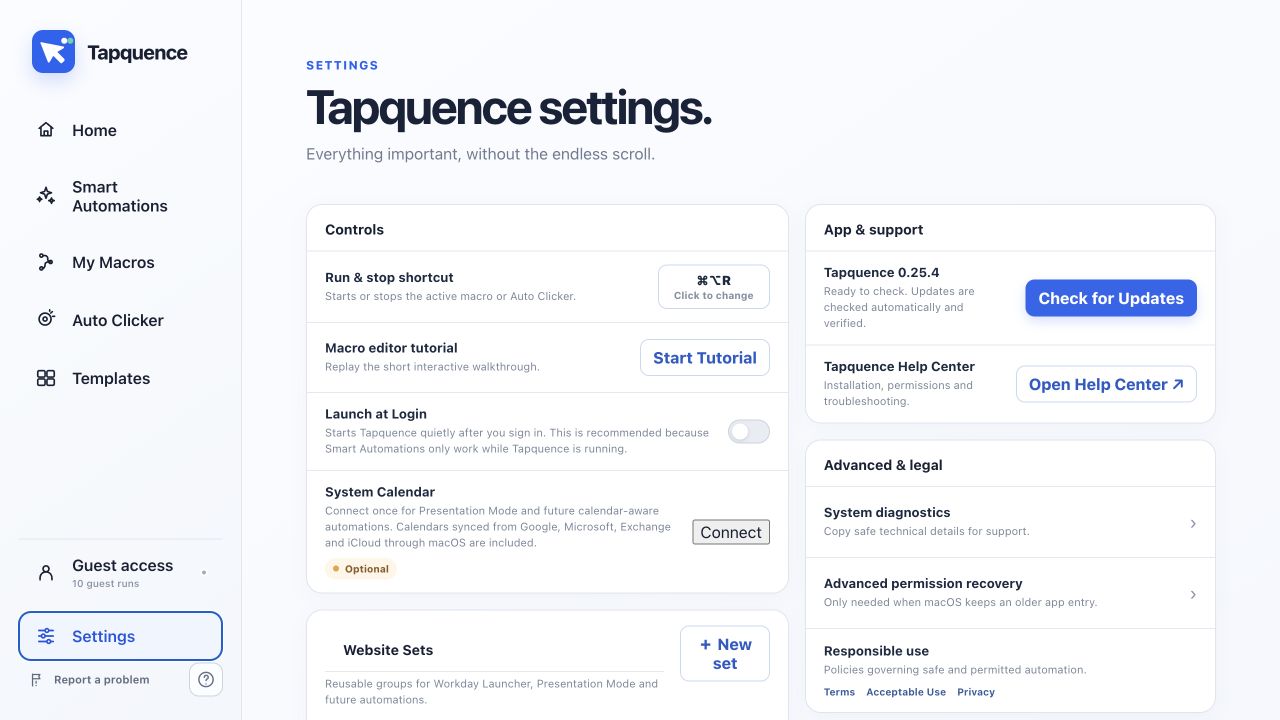
Open permissions
Tapquence needs macOS Accessibility permission before it can send the mouse and keyboard actions you explicitly add to a workflow. macOS keeps this permission off by default and you remain in control of whether it is granted.
Quick answer
Move Tapquence to the Applications folder, open System Settings, choose Privacy & Security, open Accessibility and enable Tapquence. Quit and reopen the installed copy after changing the permission.
Enable Accessibility access step by step
1. Quit any copy of Tapquence that is running from Downloads or a mounted disk image.
2. Move Tapquence into the Applications folder and open that installed copy.
3. Open Apple menu → System Settings → Privacy & Security → Accessibility.
4. Unlock the setting if macOS asks, then switch Tapquence on.
5. Quit and reopen Tapquence so the running app receives the updated permission.
If Tapquence still says access is blocked
A stale entry can point to an older copy of the app. Remove the existing Tapquence entry from Accessibility, confirm the app is in Applications, reopen it and grant access again. Restarting the Mac can also clear a process that retained the previous permission state.
Why this permission is required
Accessibility access allows an approved app to control interface input. Tapquence uses it to perform the clicks, movement and keystrokes in your workflow. The permission does not make every automation appropriate: always follow the rules of the application, employer, game or platform you use.
Verify access
Run the smallest useful example once and verify the result before enabling repetition or relying on the complete workflow.
Fix stale access
Confirm the installed app, target, folder or meeting is the one described in this guide.
Reduce the workflow to the smallest failing action and change only one setting at a time.
Use harmless data, add more time where needed and keep the stop control available.
Continue learning
Continue with the matching Tapquence feature or move through the guide sequence.
Open List Filler | DynamicSee how this guide connects to the actual workflow.›