Meetings & recording
Start calls, record conversations, and choose what to capture.
Frequently asked questions
The essentials, without leaving this page.
Does Tapquence record automatically?
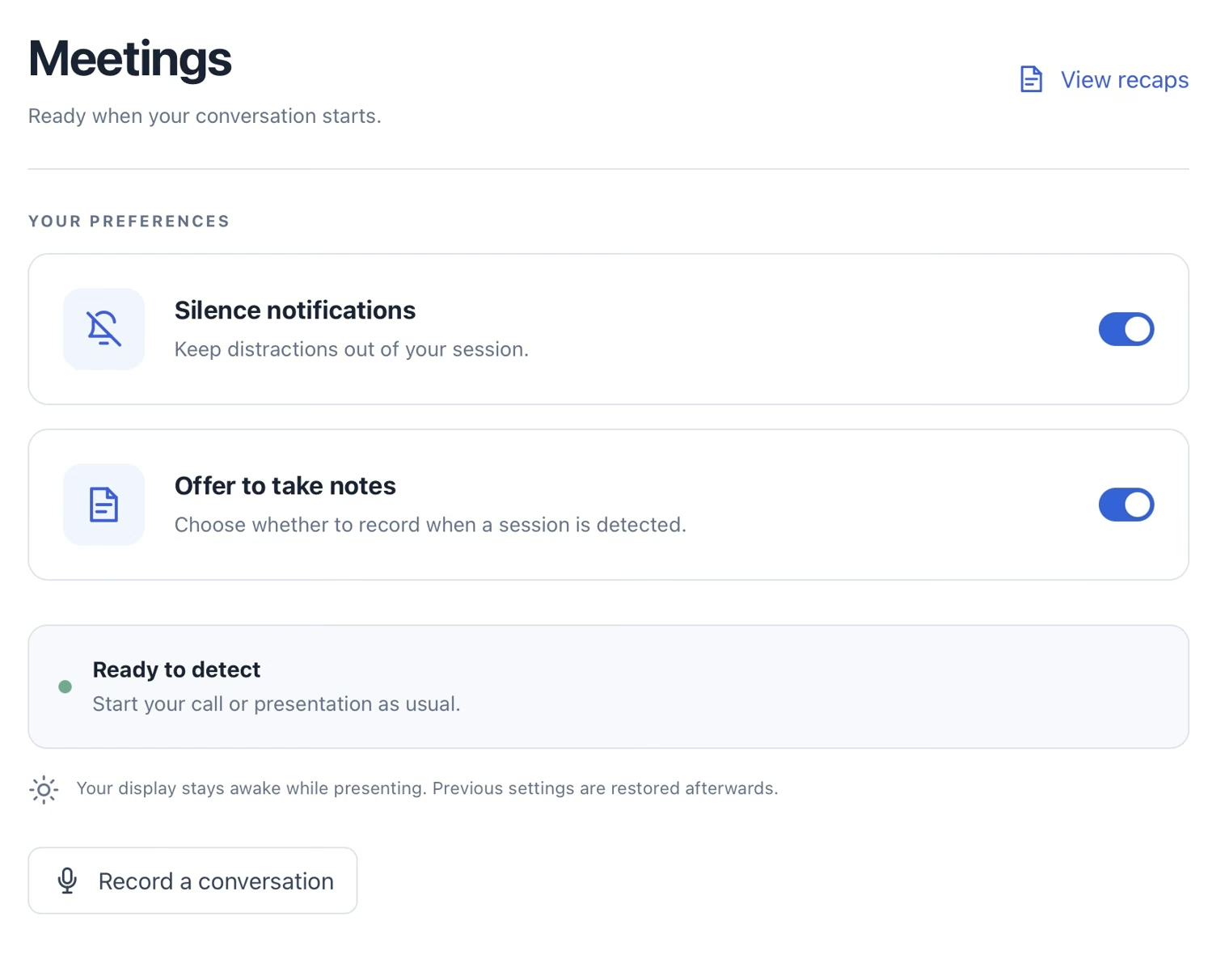
No. Recognizing a meeting or presentation is separate from recording it. “Offer to take notes” gives you a choice when a supported session is detected; detection alone does not start audio capture.
Accept the recording offer or start “Record a conversation” yourself. Check Tapquence’s recording indicator to see whether capture is active. You can stop an active recording from its controls or the macOS menu bar.
How do I record a conversation without a meeting app?
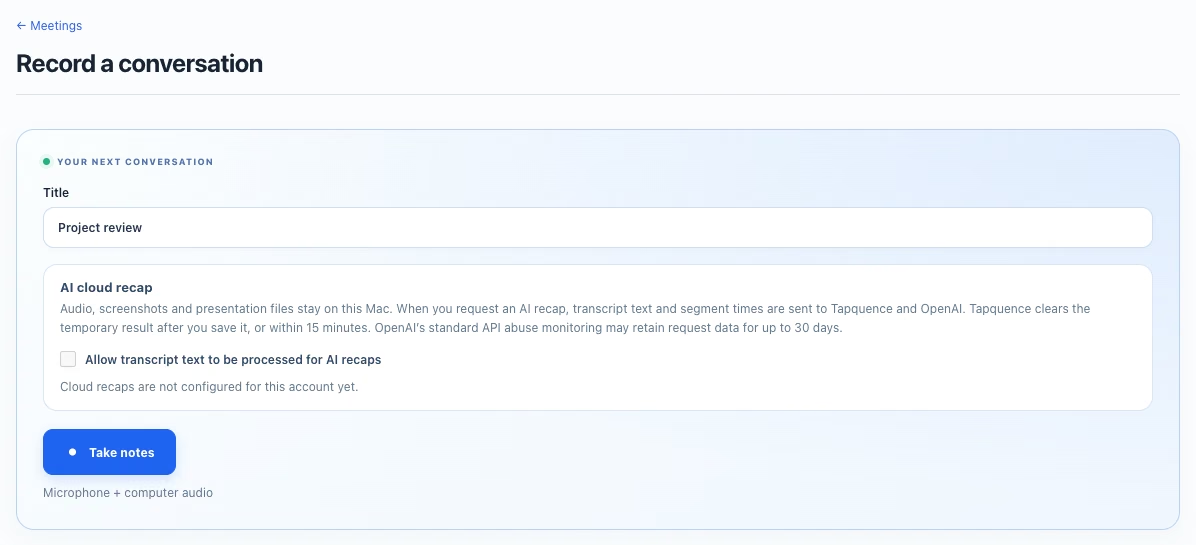
Open Meetings and choose “Record a conversation”. Give the session a title if needed and start taking notes. A calendar connection is optional.
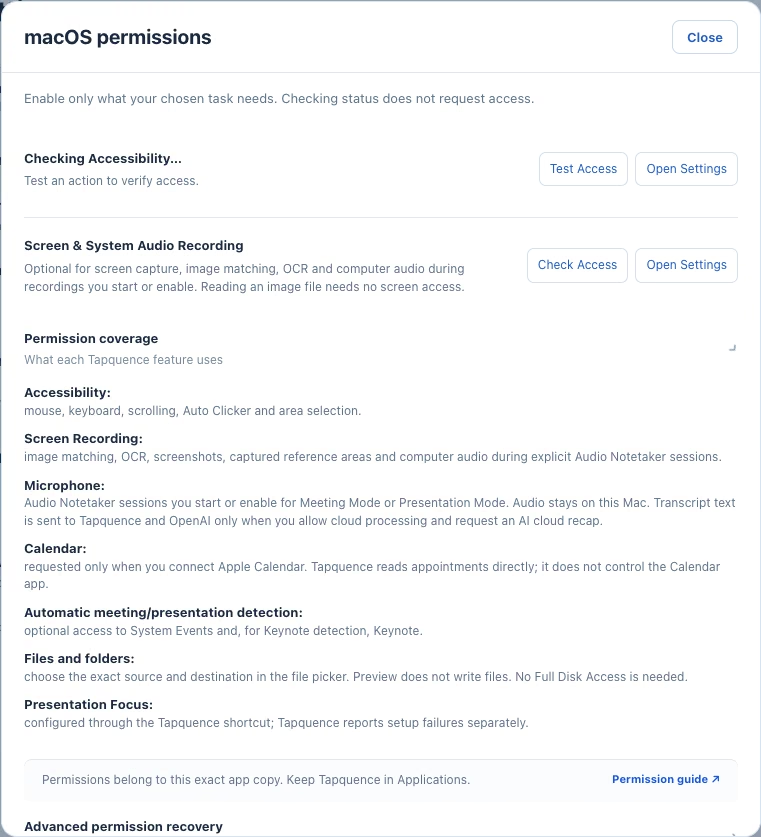
This is useful for an in-person discussion or another conversation at your Mac. Check that Microphone access is enabled. Only one recording can be active at a time.
Which meeting apps can I use?
Tapquence works alongside your usual call app. Supported meeting recognition includes Microsoft Teams, Zoom and Google Meet; recognition can vary with the app and browser you use.
You still join and control the call in its own app. If a session is not recognized, you can start “Record a conversation” manually. Calendar meeting links and recording audio are separate from automatic app recognition.
Can Tapquence record the call while I use headphones?
Yes. Computer audio is captured separately from the microphone, so the other side of the call does not need to play through your speakers.
Make sure Screen & System Audio Recording and Microphone access are enabled. If only your voice is present, check computer-audio permission and test a short recording before your next meeting.
Can I pause or stop a recording?
Use the recording controls to pause, resume or stop an active recording. The global recording indicator and Tapquence’s menu bar controls also help you find an active session when the main window is hidden.
Wait for processing to finish before expecting the final transcript and recap. One recording can run at a time; starting another session does not take over an existing recording.
What does Tapquence do during a presentation?
Meetings includes support for recognized presentations as well as calls. Presentation support can keep your display awake and use your notification preferences while the session is active.
Recording remains a separate choice. Where a supported presentation is attached to a recording, available slide context can be kept with the saved session. Review the session in Recaps after processing.
Where do I find my recordings and recaps?
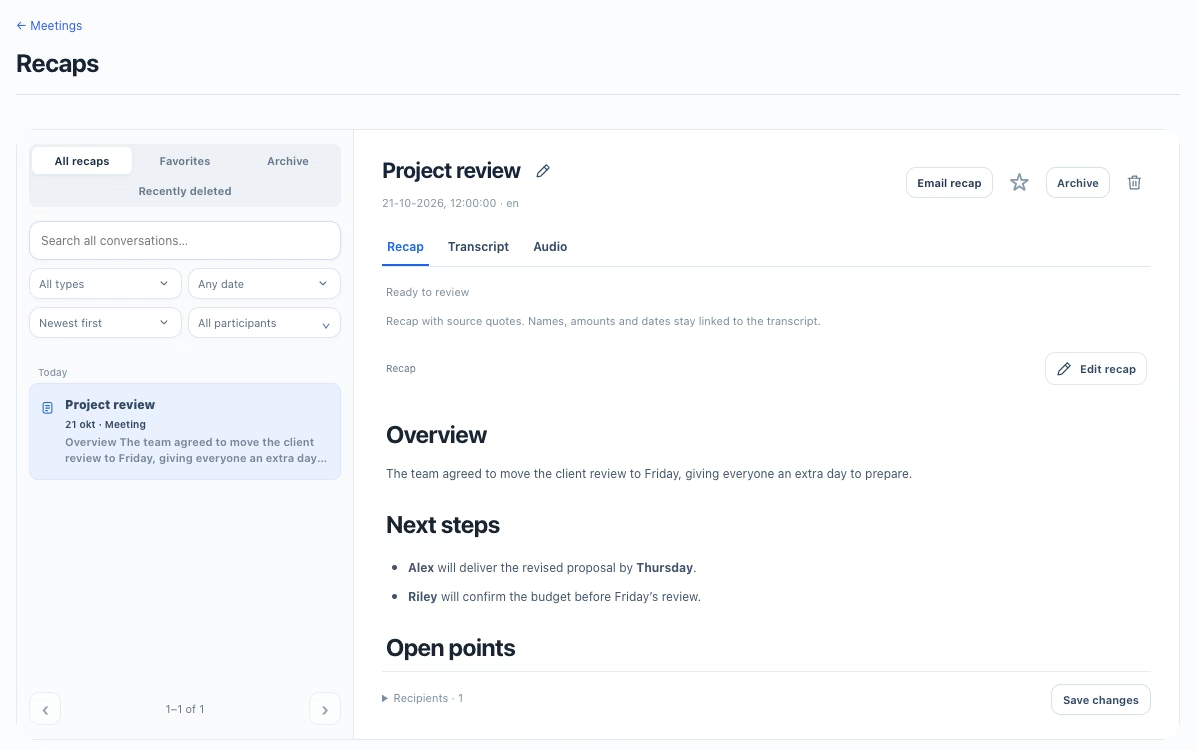
Open Meetings → View recaps. Select a conversation to switch between Recap, Transcript and Audio. Recordings and processed session data are stored on your Mac.
Use the search and filters to find a session. You can rename a saved conversation, mark it as a favorite or archive it. Archiving hides it from the active list; it does not permanently delete the recording.
Do I need to connect a calendar?
No. You can use Meetings and start a conversation recording without a calendar connection.
A connected calendar can add available appointment titles and context. It does not replace your calendar app or automatically start recording.
