TAPQUENCE SUPPORT
Which permissions are needed to record a meeting?
Set up microphone and system audio access on your Mac.
Recording needs two audio permissions. Accessibility and meeting detection are separate: granting Accessibility alone does not give Tapquence access to the microphone or computer audio.
1. Use the installed app
Drag Tapquence into Applications, eject the disk image and open the installed copy. Permissions belong to that exact application copy. Moving the app or running an older duplicate can leave macOS permission entries pointing to the wrong copy.
2. Enable Microphone
Open System Settings → Privacy & Security → Microphone. Enable Tapquence when listed. This allows the recorder to capture the selected input device. The permission request appears when you start a feature that needs it; checking a status does not itself grant access.
3. Enable Screen & System Audio Recording
In Privacy & Security, open Screen & System Audio Recording and allow Tapquence. macOS groups these capabilities together; the audio recorder uses it to capture sound played by the Mac. No screen frames are saved by the audio recorder.
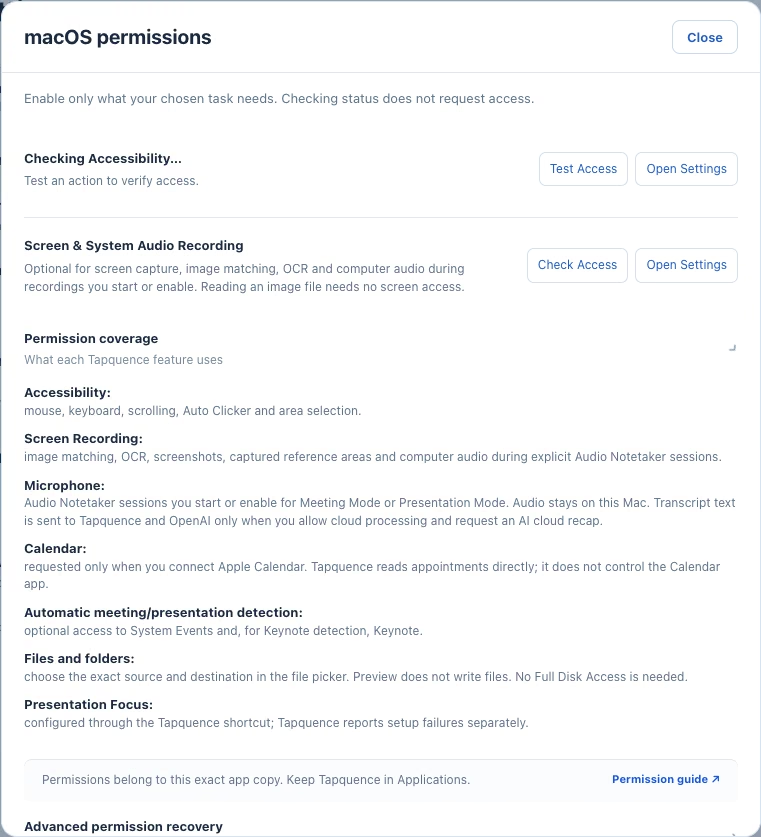
The screenshot shows Tapquence’s own permissions explanation. The exact name and appearance of the macOS settings panel can vary with your macOS version.
4. Reopen and test
If macOS requests it, quit and reopen Tapquence after changing access. Start a short conversation recording, speak into the microphone and play a little audio on the Mac. Finish, open the saved session’s Audio tab and check that both sources can be heard.
If permission still appears blocked
Confirm you are opening the copy in Applications. For an outdated Accessibility entry, remove the old entry, reopen the installed app and grant access again. Only reset a permission when the normal settings flow does not resolve a mismatch; do not grant unrelated permissions to fix an audio problem.
