TAPQUENCE SUPPORT
How do I share a recap by email?
Review your transcript, edit the recap, and prepare an email draft.
Sharing starts with a review. Tapquence keeps the recap, transcript and audio together so you can check important statements before sending notes to someone else.
1. Open the saved conversation
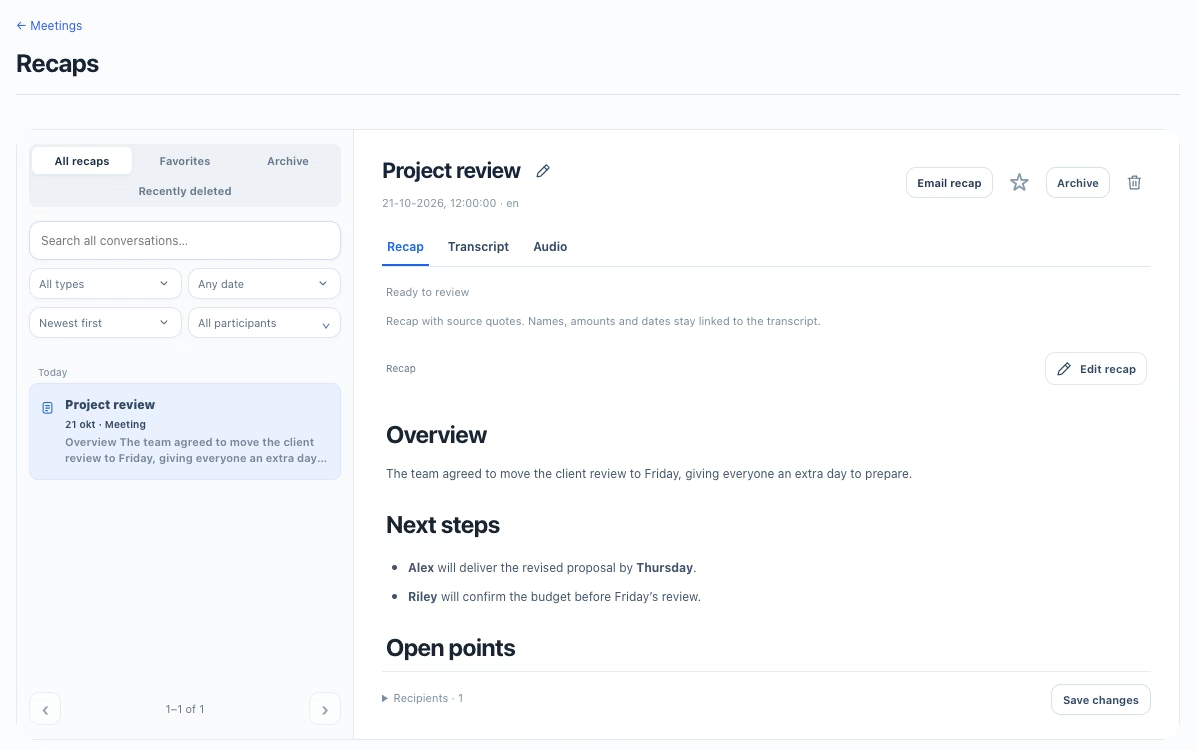
Go to Meetings → View recaps and select the conversation. Use the search and date filters if needed. Wait until processing finishes before expecting the final transcript and recap.
2. Check the source
Switch to Transcript to review what was said, or use Audio to listen. Speaker names appear only when reliable speaker context is available; they are not guaranteed for every app or recording. Verify names, dates, numbers and action owners before sharing.
3. Edit and save
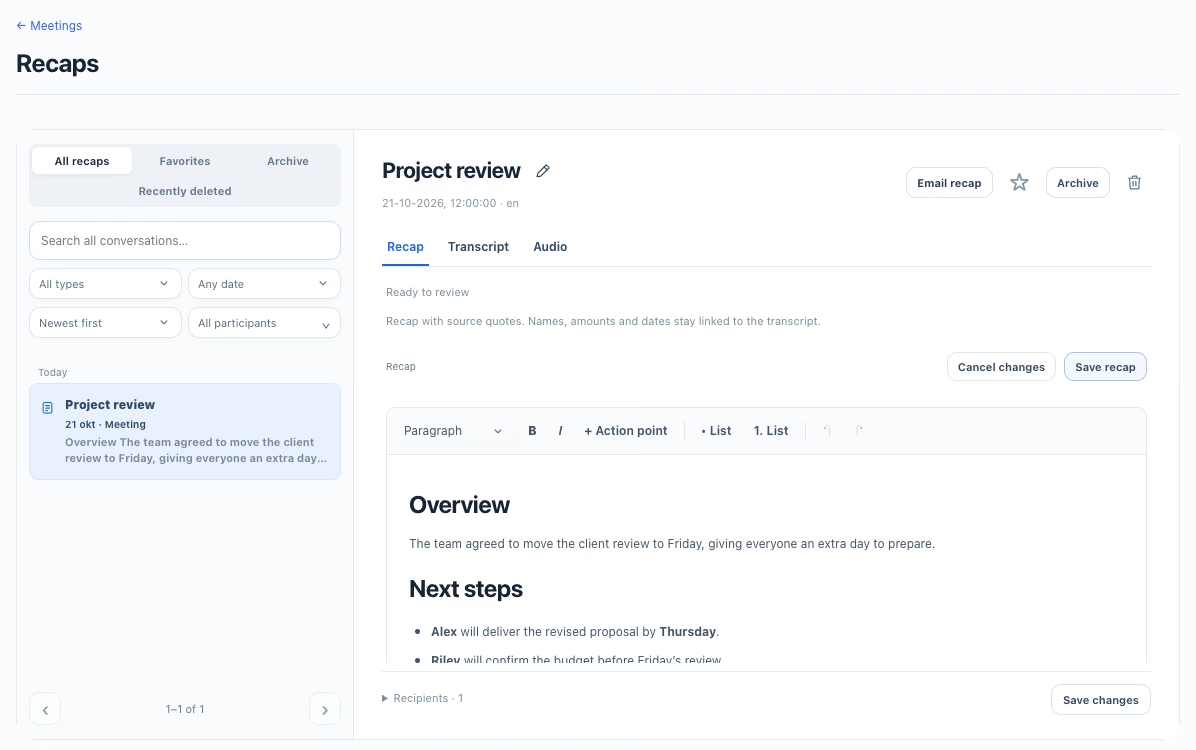
Use Edit recap to refine the notes and their formatting. Save recap when finished. A recap is a reviewable aid: changing its text does not rewrite the saved recording or transcript.
4. Review recipients and the email preview
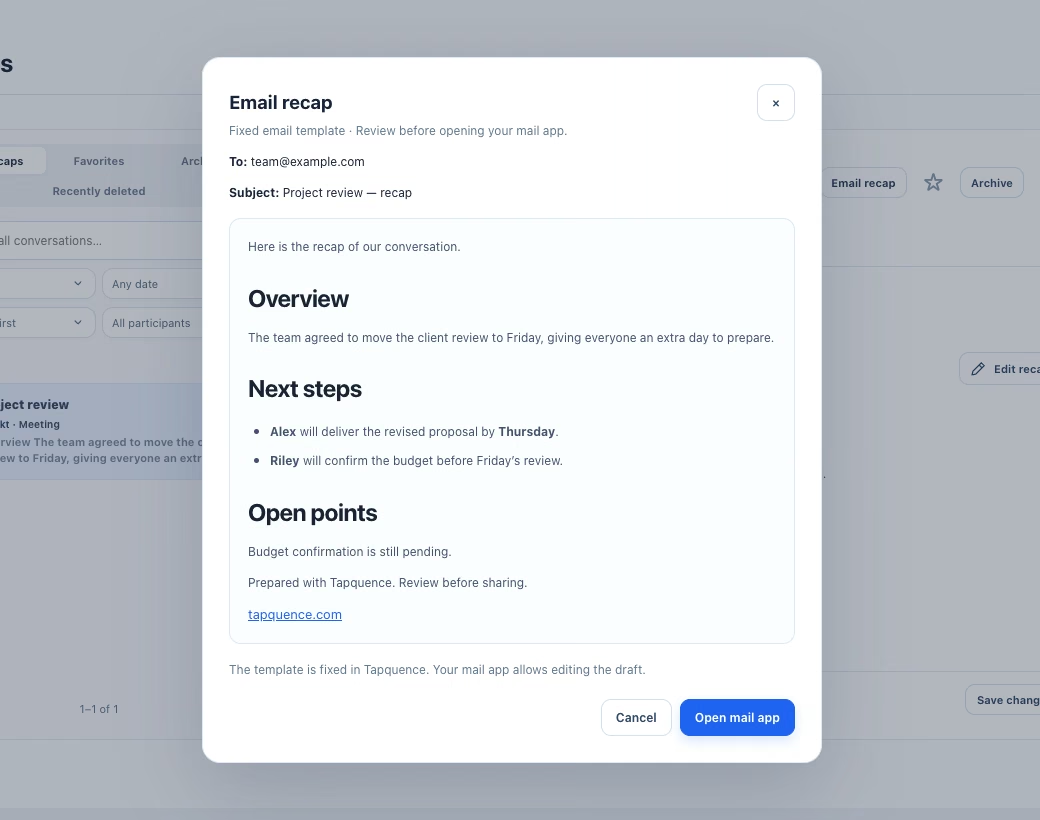
Choose Email recap. Check who should receive it and review the preview. Invitee addresses from an associated calendar appointment may be suggested, but an invitation is not proof that someone attended. Remove recipients who should not receive the notes.
5. Open your mail app and send
Choose Open mail app to prepare a draft. Tapquence does not send the message automatically. Your mail app lets you check the recipients and contents again, edit the draft and send it yourself.
The app screens on this page contain fictional example notes and an example.com recipient; they do not show a customer recording.
