Transcripts & recaps
Review, edit, and share the useful parts of your meetings.
Frequently asked questions
The essentials, without leaving this page.
How do written recaps use Apple Cloud Pro?
Recordings and transcripts are stored on your Mac. To create a written recap, import the supplied Shortcut once and acknowledge that transcript text and recap instructions will be sent to Apple Private Cloud Compute through Apple Cloud Pro. This requires a compatible Apple Intelligence Mac with macOS 27 or later and an internet connection. Apple Intelligence availability and daily usage limits apply on every Tapquence plan, including Unlimited. This recap route does not use ChatGPT. Existing legacy subscriptions from older app versions may retain a separate cloud recap option under their existing terms.
Where do I find my recordings and recaps?
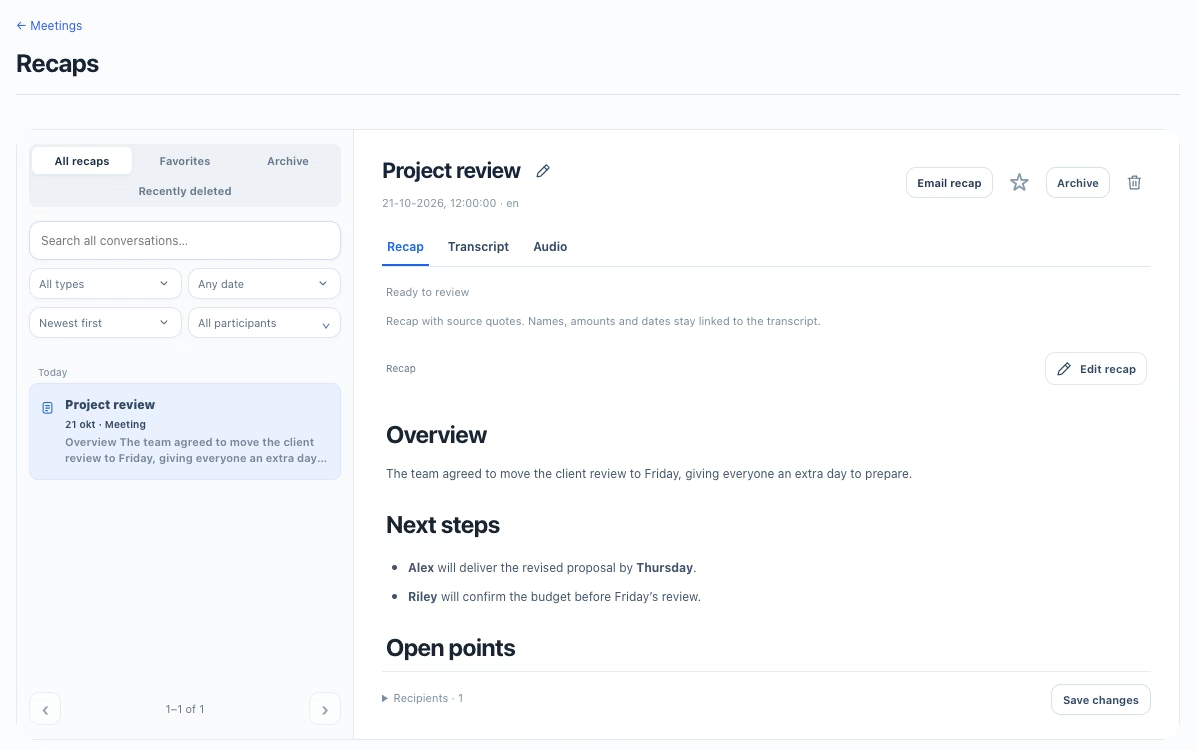
Open Meetings → View recaps. Select a conversation to switch between Recap, Transcript and Audio. Recordings and processed session data are stored on your Mac.
Use the search and filters to find a session. You can rename a saved conversation, mark it as a favorite or archive it. Archiving hides it from the active list; it does not permanently delete the recording.
Does Tapquence recognize every speaker’s name?
Speaker names appear when reliable speaker context is available for that recording. Names are not guaranteed for every app, participant or recording. If names are unavailable, the transcript shows that they were not available.
Calendar invitees are not proof that someone attended or spoke. Check names, action owners and the underlying transcript before sharing your recap.
Which language will my transcript and recap use?
Transcription detects the spoken language automatically. The recap uses the predominant language of the conversation where supported. There is no need to choose a language before recording.
Recognition quality can vary with audio clarity, overlapping speech and language support. Review names, numbers and important statements against the recording before sharing.
How do I edit and save a recap?
Open a saved conversation in Recaps and use its recap editor. You can refine the wording and formatting, then save your changes. The Transcript and Audio tabs remain available for checking what was said.
A recap is a reviewable aid, not a substitute for checking important facts. Review dates, amounts, names and action owners before sending it to other people.
What if Apple Cloud Pro is unavailable?
Written recaps use Apple Cloud Pro through the supplied Shortcut on a compatible Apple Intelligence Mac with macOS 27 or later and internet access. Import the Shortcut once and acknowledge cloud processing before transcript text is sent to Apple Private Cloud Compute. Apple Intelligence availability and daily usage limits apply, including on Unlimited. If Apple Cloud Pro cannot create a written recap, your recording and transcript remain on your Mac; Tapquence does not switch to an on-device writing model. Where available, a transcript-excerpt draft is clearly labelled so it is not mistaken for a written summary.
