Getting started
Install Tapquence and prepare for your first conversation.
Frequently asked questions
The essentials, without leaving this page.
What is Tapquence?
Tapquence brings meeting support, local recording and transcription, local AI recaps and practical Mac automation together. Local audio, transcripts and recaps stay on your Mac. Apple Intelligence runs on-device. For local recaps and the new Free, Pro and Unlimited plans, Tapquence does not send conversation content to cloud AI. If an existing legacy subscription includes optional cloud recaps, sending a transcript still requires your explicit choice and cloud consent under its existing service terms. Accounts, speech-asset downloads, billing, updates, optional calendars and deliberate sharing can use the network.
Does Tapquence support Apple Silicon and Intel Macs?
Yes. The Universal macOS build contains support for both Apple Silicon and Intel Macs, so you can use the same download on either architecture.
Which versions of macOS are supported?
Check the current download and in-app setup for supported Macs and the minimum macOS requirement. Recording microphone and computer audio requires macOS 15 or later. Written recaps require the local model setup; processing speed depends on your Mac. All plans use the same on-device Apple Intelligence engine. Recording and transcription remain available if recap processing is unavailable.
Why does Tapquence need Accessibility permission?
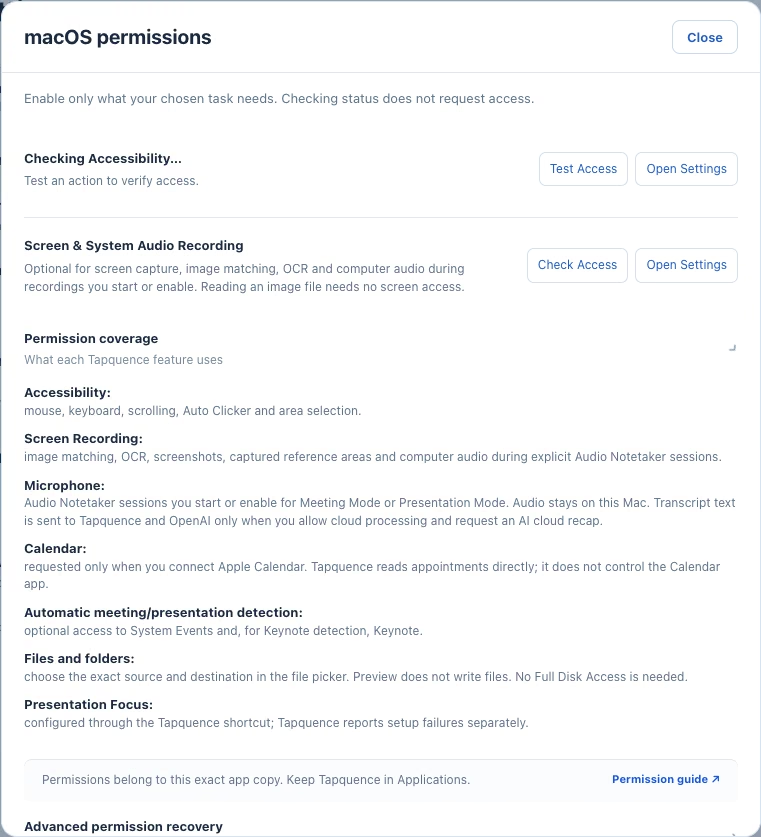
macOS requires Accessibility permission before an application can generate mouse clicks or keyboard input. Tapquence uses this permission only to run the actions you configure. You can review or revoke access in System Settings under Privacy & Security.
Which permissions should I enable?
For recording, Tapquence needs Microphone and Screen & System Audio Recording access. The latter captures computer audio, including the other side of a call. Recording does not save screen frames.
Accessibility is used for supported meeting and presentation detection and for mouse and keyboard automations. Input Monitoring may also be requested for relevant automation features. Grant permissions only to the installed copy in Applications, then reopen Tapquence if macOS asks you to.
Why should Tapquence be moved to Applications?
Keeping Tapquence in Applications gives it a stable location. Moving or replacing the application can make macOS treat it as a different copy and can cause previously granted permissions to stop matching.
