TAPQUENCE SUPPORT
Which calendars can I connect?
Connect a calendar once and add appointment context to your sessions.
A calendar connection can add available appointment titles and context to your sessions. It is optional: Meetings and manual conversation recording work without one.
1. Choose a connection
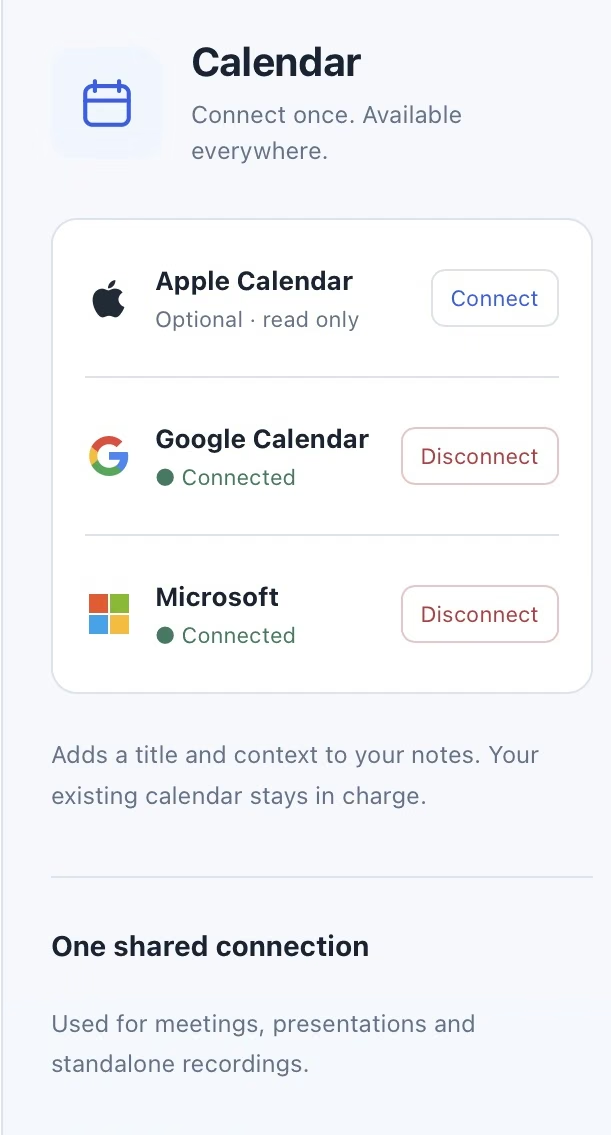
Use the calendar connections available in Tapquence’s Settings, including System Calendar and the supported Google and Outlook connections. System Calendar reads calendars available through macOS. Your existing calendar remains in charge of your schedule.
2. Grant access deliberately
Connect the account you want to use and follow the provider’s permission prompts. When using System Calendar, explicitly connecting requests the relevant macOS calendar access. Available details depend on the provider and the permissions you grant.
3. Check your next session
Start a call or conversation as usual. When a current appointment can be associated unambiguously, its available title, time and provider can appear with the saved recap. Tapquence does not begin audio capture just because an appointment starts; you still choose whether to record.
4. Review context before sharing
An appointment’s invitee list may provide suggested recipients for an email recap. Review and edit that list. Invitees are not proof of actual attendance, and the event title does not prove what was discussed.
Reconnect or disconnect
If access expires, reconnect explicitly in Settings and follow the provider’s prompts. Disconnect when you no longer want Tapquence to read that calendar. Manual recording remains available without a connection. The exact connection controls can vary with the current app version.
