ARTICLE
How to Transcribe Meeting Audio on a Mac
Tapquence Editorial
·
6 min read
Editorial week of
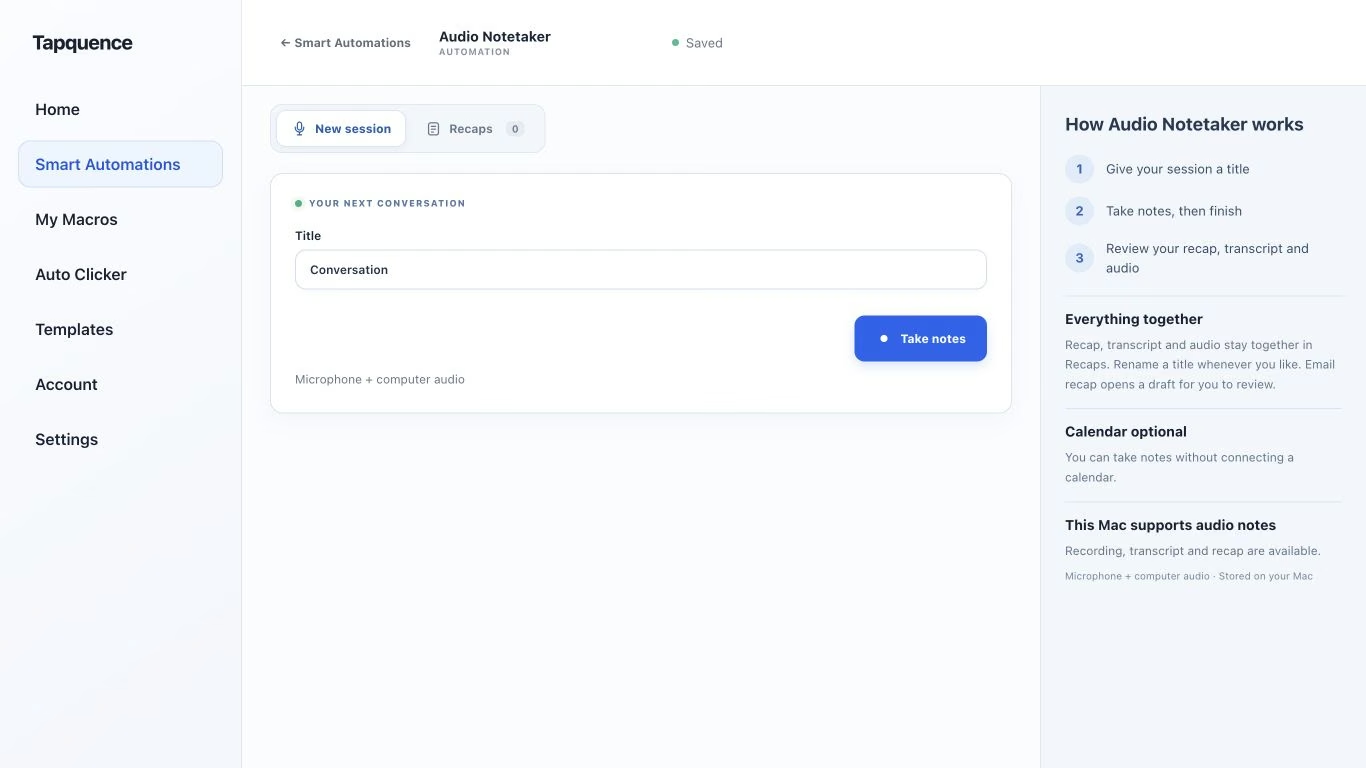
A standalone Audio Notetaker session. Give the conversation a title, then review the saved audio and transcript after recording.
KEY TAKEAWAY
Capture both voices, then check the details that matter before turning a transcript into shared meeting notes.
A useful meeting transcript starts with the right recording. If your Mac captures only your microphone, it may miss everyone speaking through your headphones. If you already have an audio file, you need a transcription workflow that can open that file.
This guide explains how to approach audio transcription on a Mac, capture both sides of a call, and turn the result into notes you can actually use.
1. Choose your starting point
Decide whether you are preparing for a new meeting or working with an existing recording. That choice determines what your tool needs to do.
Three ways to start
Your situation
What to look for
An in-person conversation
Microphone recording, transcription and a clear way to review the audio.
A video meeting on your Mac
Capture of your microphone and computer audio, so both sides are included.
An existing audio file
File import that supports your recording’s format, followed by transcript review or export.
Apple Notes is one built-in option for recording and transcribing audio inside a note on supported Macs. Availability depends on your hardware, language and region; see Apple’s recording and transcription guide. Do not assume a microphone recording also captures the other side of a video call.
For an existing file, check import support before choosing a tool. A live meeting recorder and an audio-file transcriber are not necessarily interchangeable. Tapquence’s workflow below starts a new recording; it is not an arbitrary audio-file import walkthrough.
2. Capture both sides of the meeting
For a video call, your microphone captures your voice, while computer audio carries the other participants. Headphones make the distinction especially important: their voices may never reach your microphone clearly.
01
Your microphone
Your side of the conversation
02
Computer audio
The voices from the call
→
03
One recording
Transcribe, then review
Before the meeting, make a short test recording with another person. Play it back and confirm you can hear both voices at a usable level. Fixing a missing audio source afterwards is much harder than catching it beforehand.
Before you press record
Tell participants that you plan to record and transcribe the conversation, and follow your organisation’s recording policy. Keep recording, processing and sharing as separate decisions.
3. Record a new session with Tapquence
Tapquence Audio Notetaker brings microphone and computer audio into a meeting-notes workflow on your Mac. You can start a standalone session without connecting a calendar.
Open Audio Notetaker. Give the session a title you will recognise later, such as “Client project review”.
Start taking notes. Allow the microphone and system-audio recording permissions macOS requests. Check them with a short test before relying on the recording.
Have the conversation. Keep the recording controls accessible so you can pause or finish when needed.
Finish the session. Let Tapquence process the recording, then open the saved session to review its transcript, recap and audio.
Local transcription needs a prepared speech model, with an initial download before its first use. After preparation, transcription runs on your Mac. Recording requires macOS 15 or later. Local AI recaps require macOS 26 or later, Apple Intelligence and a supported language; transcript highlights remain available when an AI recap is unavailable. Optional cloud AI requires a paid subscription, explicit consent and service availability. Processing time varies with the recording and your hardware, so plan time to review the result.
For compatibility, permissions and the full setup, follow the Notetaker setup guide. The Audio Notetaker setup template provides another starting point for this workflow.
4. Review the transcript before relying on it
Transcription gives you a searchable draft of what was said. Background noise, overlapping speakers, names and language changes can all introduce mistakes. Check the passages that affect what somebody will do next.
Names: people, clients, products and project names.
Numbers: prices, quantities, dates and deadlines.
Commitments: who agreed to do what, and under which conditions.
Negations: “not approved” must not become “approved”.
Replay the relevant audio when a sentence is unclear. If a speaker or owner is uncertain, leave it unconfirmed instead of guessing. A polished sentence is less useful than an accurate record.
5. Turn the transcript into useful meeting notes
A transcript preserves the conversation. Meeting notes help people find the decisions, responsibilities and unresolved questions without reading every line.
WORKED EXAMPLE
Fictional conversation
Transcript excerpt
“Let’s use the shorter onboarding flow. Maya, can you send the revised screens by Thursday? We still need to confirm the launch date.”
Reviewed meeting notes
Decision
Use the shorter onboarding flow.
Action
Maya to send revised screens by Thursday; confirm the calendar date before sharing.
Open point
Launch date still to be confirmed.
Notice what stays open. The example does not invent a launch date or turn a request into a completed task. Apply the same discipline to any generated recap: compare important statements with the transcript or recording, then edit before sharing.
Tapquence keeps the session’s recap, transcript and audio together, so you can review the shorter version alongside its source material.
6. Share and store the result deliberately
Choose what the recipients actually need: a short recap, a corrected transcript, or access to the recording through an approved channel. Avoid distributing the full conversation when a few reviewed decisions will do.
Local processing and sharing are different stages. A transcript processed on your Mac can still leave it when you copy it into an email or a shared workspace. Check recipients and remove irrelevant personal details before sending.
Build a repeatable meeting workflow
Start with Audio Notetaker for recording and review. If your Mac also needs a consistent call setup, explore Meeting Mode. Test the complete workflow once before an important meeting.
Common questions
Why is only my voice in the recording?
The recorder may be capturing your microphone without computer audio. Check the recording source and macOS permissions, then repeat a short test with another participant.
Can I transcribe a meeting while wearing headphones?
Yes, with a recorder that captures computer audio as well as your microphone. Do not rely on sound leaking from the headphones into your microphone.
Can audio transcription work offline?
It depends on the tool. Tapquence performs transcription locally after its speech model is prepared. The initial model download needs a connection; meeting connectivity and sharing have their own requirements.
