ARTICLE
Meeting Preparation Checklist: Get Your Mac Ready for Video Calls
Tapquence Editorial
·
5 min read
Editorial week of
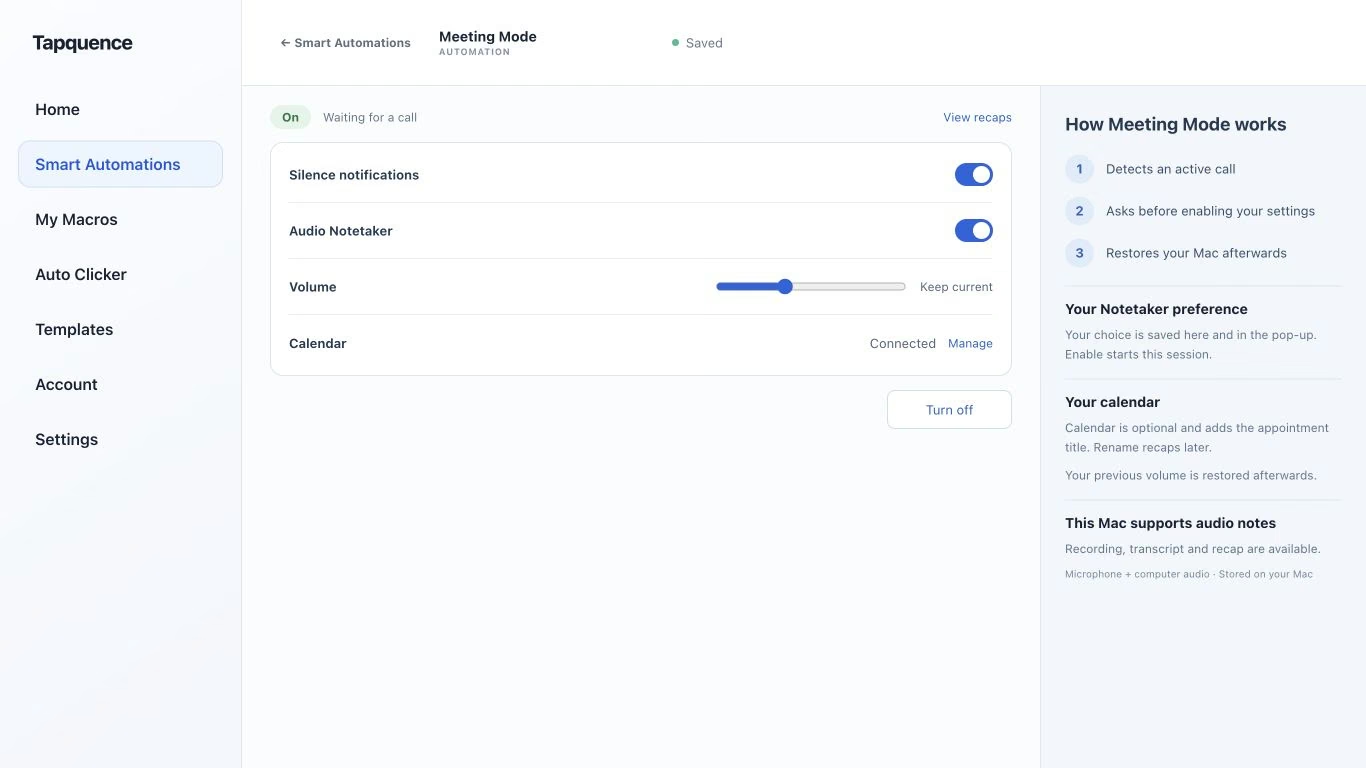
Meeting Mode settings. Review the choices and test both activation and restoration.
KEY TAKEAWAY
Prepare the decision first, then the workspace. A repeatable call setup supports a clear agenda and reliable notes.
A good meeting starts before the call connects. You need a clear outcome, the right material and a Mac that is ready to help rather than interrupt. A meeting preparation checklist makes those small decisions repeatable.
Use the checklist below for a client call, project review or team discussion. Prepare the substance first, then the technology. Opening every app you might need is less useful than knowing what the meeting must decide.
1. Define the outcome before opening the meeting app
Write one sentence describing what should be different when the meeting ends. “Review the project” is broad. “Agree which onboarding flow goes into the next prototype” gives participants something specific to prepare for.
List the decisions, the people needed to make them and any information they should read beforehand. If one participant owns a critical number or document, ask them to bring it. Put background material in the invitation or a shared location rather than spending the opening minutes searching for it.
MEETING BRIEF
Fictional project review
Outcome
Choose the onboarding flow for the next prototype.
Input
Decision
Which option to develop, and what must change first.
Record
The choice, its conditions and the next owner.
2. Ten minutes before: prepare the workspace
Open the exact document, deck and supporting pages you intend to use. Check that you can access them with the account you will use during the meeting. A document that opens on your personal account may still be unavailable to the client.
Choose a notes destination and give it a recognisable title. Add the agenda headings, then leave space for decisions and actions. If you intend to record, decide what you need to capture and tell participants how the recording will be used.
Your ten-minute checklist
The purpose and expected decision are clear.
The agenda and supporting material are available.
The correct meeting link and account are ready.
A notes page or recording workflow is prepared.
Private windows and unrelated material are out of the way.
For calls you regularly prepare the same way, Meeting Mode can provide a repeatable setup for selected Mac settings. Treat it as support for preparation, not a substitute for reviewing the agenda or documents.
3. Test audio and video before the pressure starts
Check the selected microphone, speakers or headphones, and camera in the meeting application. Say a short sentence and watch the input level. If you changed devices since your last call, check again rather than assuming the app selected the new one.
If another participant can join a short test, confirm they hear you clearly. When recording, test playback too. Capturing your microphone alone may miss the other participants’ computer audio, especially when you wear headphones.
Use a stable camera position and put the material you will discuss within easy reach. If you present, test sharing the intended window. Remember that a window containing several tabs can still reveal more than the one page you meant to show.
4. One minute before: reduce avoidable interruptions
Review notification behaviour, set a comfortable volume and confirm that your Mac has enough power for the session. Close unrelated windows and check the title of the document you are about to share. Keep the meeting link and notes available without burying them under a dozen other apps.
The final sixty seconds
Check
Ready means
Audio
The intended input and output are selected.
Material
The exact file or page is open and readable.
Interruptions
Notification and volume settings suit the call.
Notes
You know where decisions and actions will go.
When using Meeting Mode, review the proposed changes before accepting them. Follow the Meeting Mode setup guide and test both activation and restoration with a short call. An open meeting app is not the same as an active supported meeting.
5. Open and close the meeting deliberately
At the start, state the intended outcome and confirm who is taking notes. If recording is planned, make that clear before it begins. A brief opening prevents people from assuming that somebody else is preserving the decisions.
At the end, read back what was agreed, who owns each next step and what remains unresolved. Do not use a deadline that nobody accepted. Confirm where the reviewed notes will be shared.
After the call, finish any recording and check that temporary settings have returned as expected. Review important names, dates and amounts before sending a recap. The next meeting becomes easier when the previous one leaves a clear record.
Make the setup repeatable
Use the Meeting Mode setup template for your call environment. Add Audio Notetaker when you need a recording and transcript to review afterwards. Test each part before an important conversation.
Common questions
How much preparation does a short meeting need?
Keep it proportionate. A clear outcome, the correct link and material, working audio and a notes destination are a useful minimum. A client presentation usually needs a fuller rehearsal.
Should every meeting use the same checklist?
Keep a common foundation, then add what the situation needs. A decision meeting needs options and an owner; a presentation needs a screen-sharing test; a sensitive conversation needs deliberate recording and sharing choices.
