ARTICLE
Meeting Notes Without a Bot: How It Works on a Mac
Tapquence Editorial
·
5 min read
Editorial week of
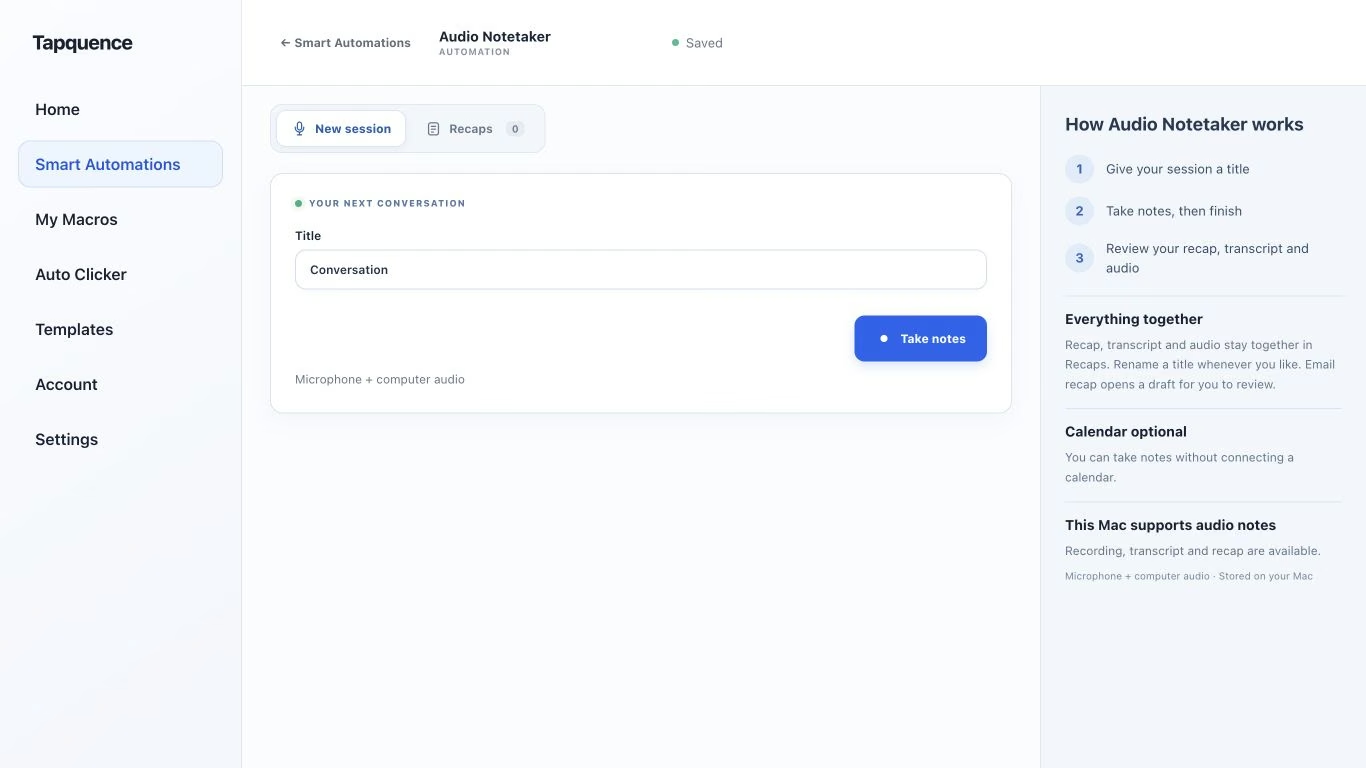
A standalone Audio Notetaker session. Give the conversation a title, then review the saved audio and transcript after recording.
KEY TAKEAWAY
Bot-free describes capture. Check processing, storage and sharing separately, and tell participants before recording.
Meeting notes without a bot start with a different way of capturing the conversation. Instead of inviting another participant into the call, a local recorder can capture audio on your Mac and produce a transcript for you to review afterwards.
The useful question is what happens at each stage: recording, transcription, storage and sharing. A bot-free experience tells you something about the call interface. It does not, by itself, tell you where the audio is processed or who will receive the notes.
1. What “without a bot” actually means
A meeting bot typically joins a call as a participant or service associated with the meeting. A local desktop recording workflow captures the audio available on your own computer instead. Other participants do not need to interact with an additional bot participant.
That distinction can simplify the experience, but recording should still be clear to everyone involved. Explain what you plan to capture and follow your organisation’s policy. The absence of a bot is not a reason to hide that a recording is being made.
Four separate questions
Stage
Ask this
Capture
What records the conversation, and which audio sources are included?
Processing
Is transcription performed on the Mac or by a remote service?
Storage
Where do the audio, transcript and recap remain?
Sharing
What leaves the device, and who chooses the recipients?
2. Capture your voice and the voices from the call
For a video meeting, a microphone-only recording may capture your voice while missing the other participants. Their speech comes through computer audio. Headphones make it especially important to capture that source directly rather than relying on your microphone to pick up sound from the speakers.
Tapquence Audio Notetaker uses a microphone-and-computer-audio workflow for a new session on your Mac. You can give a standalone session a title without connecting a calendar.
Before relying on it, make a short test recording with another person and play it back. Confirm both sides are audible. Check the permissions described in the Notetaker setup guide if one source is missing. A clear test is better evidence than an input meter moving.
3. Understand what stays on your Mac
Tapquence performs transcription locally after preparing its speech model. The initial model download requires a connection. That is different from uploading each meeting recording to a cloud transcription service.
Recording, transcript and recap stay together in the session for review. Local processing does not make every later action local: if you copy a transcript into a shared workspace or send a recap by email, you are making a separate sharing decision.
01
Record
Microphone + computer audio
→
02
Process locally
After model preparation
→
03
Review and choose
What, if anything, to share
Keep the first download, ongoing meeting connectivity and later sharing requirements distinct. “The transcript is processed locally” does not mean the video meeting itself works without internet or that an email is delivered without a connection.
4. Use a workflow you can review
Explain the recording. State its purpose and who needs the result.
Name the session. Use a useful meeting title rather than an ambiguous recording number.
Check both audio sources. Run a short test before an important call.
Record and finish deliberately. Keep pause and stop controls available.
Review the saved transcript. Replay unclear names, numbers and commitments.
Choose the output. Share a checked recap or transcript only with the intended recipients.
Transcription can mishear a name, miss a negation or turn a short interruption into an incomplete sentence. When a decision depends on one passage, compare it with the audio. Leave uncertain owners or dates unconfirmed until you can resolve them.
5. Share useful notes, not every spoken word
A transcript is valuable source material. A colleague who missed the meeting may need only the decision, its conditions and the next step. Preserve the original recording for review according to your team’s retention practice, and give recipients the smallest useful result.
BEFORE SHARING
Human review
Confirm
The decision is supported by the conversation.
Check
Names, dates, figures and action owners are correct.
Keep open
Questions the meeting did not resolve.
Limit
Recipients and personal details to what the work requires.
If you want fewer setup adjustments around calls, Meeting Mode is a complementary workflow. Review its settings separately from whether you want audio notes. Preparing the call environment and recording the conversation are different choices.
Common questions
Does bot-free mean the recording is invisible?
No. It describes the capture approach, not an agreement to record secretly. Tell participants and use the recording controls openly.
Does Tapquence produce live captions during the call?
This article describes recording a session and reviewing its processed transcript afterwards. Do not treat that workflow as a promise of live captions.
Where do I start?
Review the Audio Notetaker setup template, check the guide for requirements and permissions, and test a harmless conversation before using it for a real meeting.
