ARTICLE
Teams Transcription on Mac: From Source Text to Useful Notes
Tapquence Editorial
·
3 min read
Editorial week of
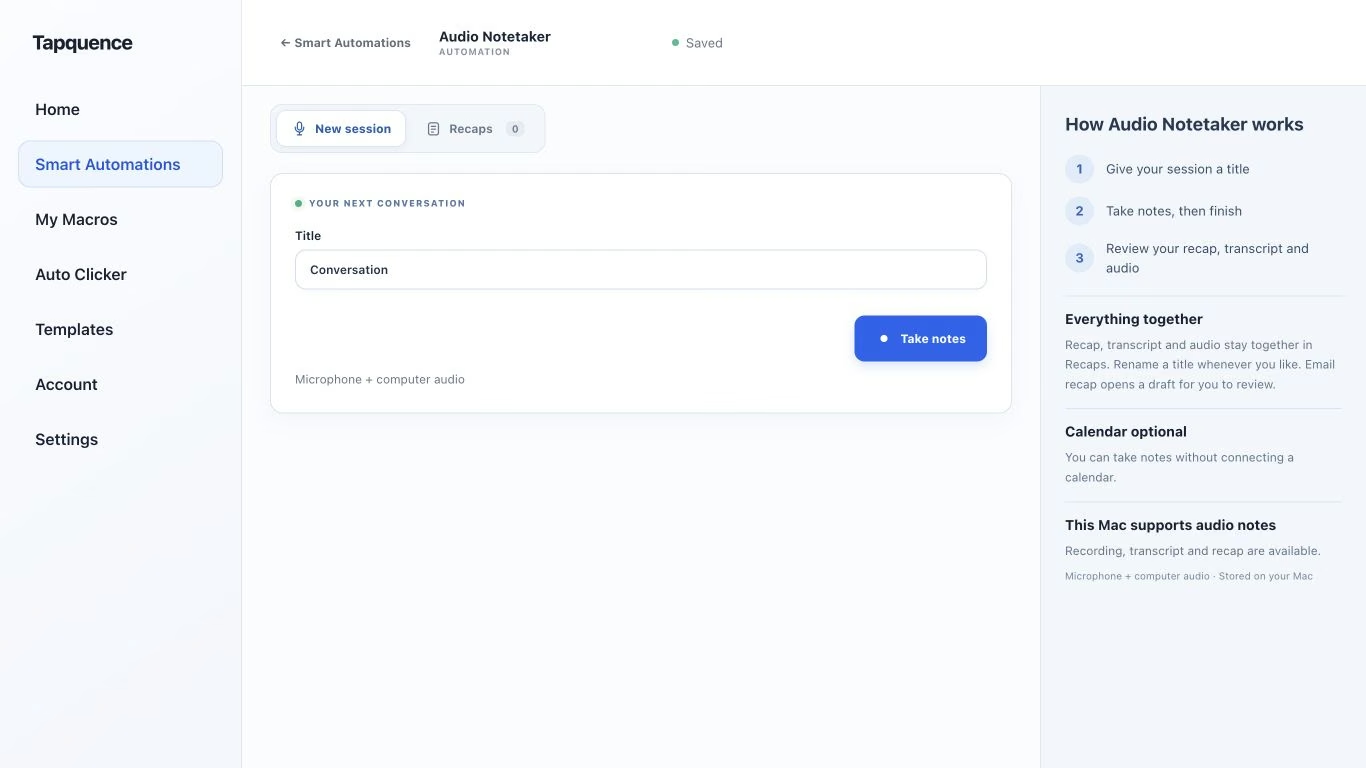
A standalone Audio Notetaker session. Give the conversation a title, then review the saved audio and transcript after recording.
KEY TAKEAWAY
Review what was accepted, not just what was mentioned. Transcription does not itself approve a deadline or assign a task.
Teams transcription is useful when you need to recover the wording of a discussion, but access and meeting settings matter. Confirm the intended recording or transcription workflow before the call, especially when you are attending somebody else’s meeting.
Afterwards, treat the transcript as source material. A readable record of the conversation still needs review before it becomes an action list or a project decision.
1. Check controls and permissions
Microsoft documents live transcription through More actions → Transcribe in supported Teams meetings, followed by confirmation of the spoken language. After a meeting, the transcript can be reviewed through its recap. Download and sharing rights depend on roles and organisational policy. See the current Teams transcription guide and transcription troubleshooting guidance.
If the control is unavailable, ask the organiser or administrator to clarify the approved route. Do not treat a different capture tool as permission to ignore the meeting’s recording rules.
2. Prepare for the result you need
Decide whether the meeting needs a full transcript, working notes or a short follow-up. If the purpose is to agree next steps, prepare headings for decisions, accepted actions and unresolved questions.
Tell participants who maintains the record and how corrections will be handled. That is particularly useful when some people join late or leave early and may otherwise mistake a partial view for the final agreement.
TRANSCRIPT REVIEW NOTE
Copy and adapt
Meeting and source:
Decision to verify:
Conditions or exclusions:
Accepted action and owner:
Agreed date, or date to confirm:
Unresolved question:
Who will check the final recap:
3. Use local notes deliberately
For an approved local audio-notes workflow, Audio Notetaker captures a new session on your Mac and keeps its audio, transcript and recap together. Model preparation needs an initial download; transcription is then processed locally.
Follow the Notetaker setup guide and test microphone plus computer audio with a harmless call. A moving microphone meter alone does not prove the other participants were captured.
This is a separate desktop workflow. It does not grant Teams recording permissions, modify the organiser’s settings or promise to import an arbitrary Teams recording.
4. Check what was actually agreed
Review the passages that change the work. A statement such as “I can investigate the date” does not confirm delivery on that date. Keep suggestions, requests and accepted commitments distinct.
AVOID A FALSE COMMITMENT
Fictional example
“Friday might work, but I need to check engineering availability first.”
Accurate note
Friday is proposed; engineering availability must be checked.
Inaccurate note
Engineering committed to delivery on Friday.
Check whether later discussion changed the statement. A transcript excerpt can preserve exact words while missing the resolution that came afterwards. Use enough surrounding context to understand the final state.
5. Circulate a usable record
Lead the follow-up with decisions and next steps, then list open questions. Share the transcript only when readers need that detail and have appropriate access. Review recipients rather than assuming every invitee needs every remark.
Before sharing
Names, amounts and dates are correct.
Owners accepted their actions.
Conditions and exclusions remain visible.
Unresolved questions have not been turned into answers.
Recipients can open the intended record.
Meeting Mode can complement the process with selected Mac call settings. Test its setup separately; a prepared environment and an accurate record solve different parts of the meeting workflow.
