ARTICLE
Record a Zoom Meeting on Mac: Choose the Right Recording
Tapquence Editorial
·
3 min read
Editorial week of
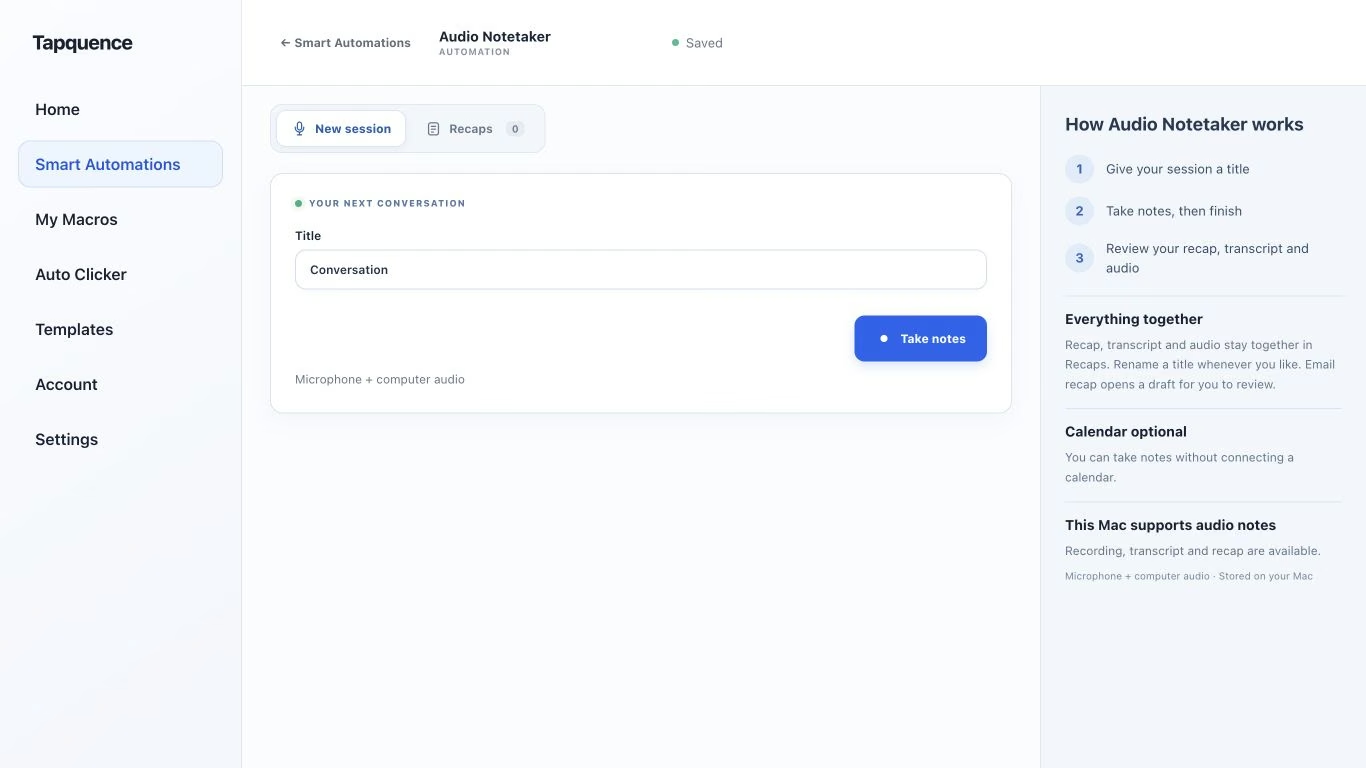
A standalone Audio Notetaker session. Give the conversation a title, then review the saved audio and transcript after recording.
KEY TAKEAWAY
Video recording and audio notes are different outcomes. Test the full path and preserve the limits of what was agreed.
To record a Zoom meeting on a Mac, first decide what you need to preserve: the meeting’s video and shared content, or audio for reviewed notes. Then confirm who can record and how participants will be informed.
A recording is only useful if you can find it, hear the intended speakers and understand what happened. Test the whole path from capture to playback before an important conversation.
1. Choose the recording route
Zoom’s computer-recording guide covers recording on the desktop app, including macOS. The host records or permits a participant to record. The guide distinguishes computer recording from cloud recording and notes that computer recording itself does not provide audio transcription. Check the current controls and account settings before the meeting.
Choose by the output
You need
Check before choosing
Video or shared content
The meeting platform’s supported recording options and permissions.
Audio for notes
Both audio sources, transcription and source review.
A short recap
A reliable source and a person to verify decisions.
Do not select a tool simply because its record button is easy to find. Confirm it produces the kind of material you actually need.
2. Prepare a short test
Check the meeting application, selected microphone and headphones or speakers. Explain the recording plan to the test participant. Record a short exchange containing speech from both sides, then finish and play it back.
For platform video recording, inspect the content you expected to preserve. For audio notes, confirm both voices are audible and not just your own microphone. Use a harmless test topic so the sample does not create a sensitive record.
A complete test confirms
The permitted recording route is available.
Both sides can be heard.
The capture can be paused or stopped as intended.
The result is saved and can be reopened.
You know which review step comes next.
3. Prepare a local audio-notes session
If your agreed process calls for local audio notes, Audio Notetaker can capture a new microphone-and-computer-audio session on the Mac. After model preparation, transcription runs locally and the session remains available for review.
Follow the Notetaker guide for requirements and permissions. This audio workflow is distinct from recording Zoom video or importing an existing video file. It also does not replace the need to agree how the conversation may be recorded.
Give the session a recognisable title so you can find it later. Keep stop controls accessible and finish the recording deliberately rather than assuming the end of a conversation always means every separate capture has stopped.
4. Review before writing the recap
Listen to unclear source passages before relying on a transcript. Check names, quantities, dates and negations. Keep a proposed deadline separate from an accepted one and avoid assigning a task to the person who merely introduced it.
RECORDING TO REVIEWED NOTE
Fictional example
“Use option B for the prototype. We still need a separate approval for production.”
Keep both parts
The prototype choice is confirmed. Production approval remains open. A short recap should not lose the difference.
5. Store and share deliberately
Choose whether recipients need the recap or the source recording. Verify the location and access before sending a link, and remove unrelated personal detail from the working notes.
For repeatable call preparation, review Meeting Mode. Treat environment setup, recording and sharing as connected but separate choices. A dependable recording workflow includes a clear ending and a reviewed result.
