ARTICLE
Presentation Checklist: Prepare Your Mac for a Client Meeting
Tapquence Editorial
·
5 min read
Editorial week of
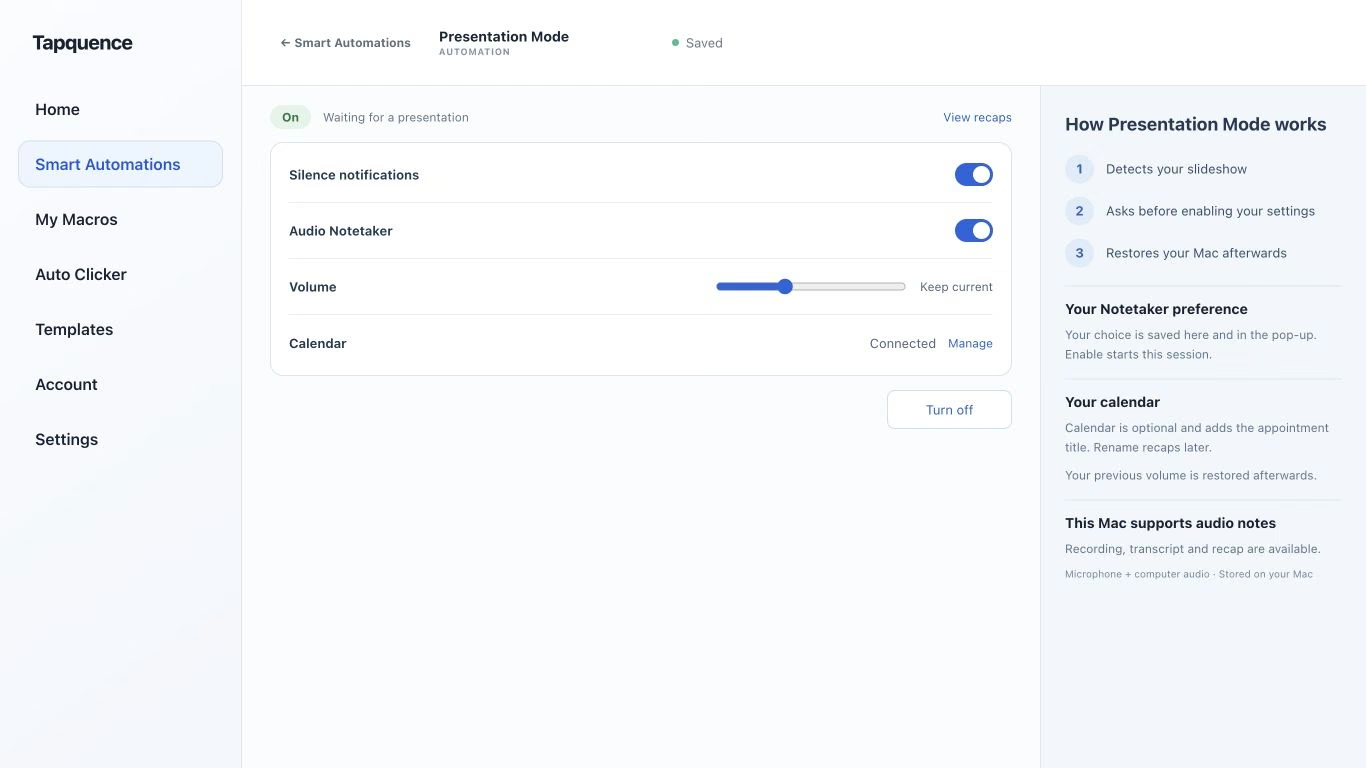
Presentation Mode settings. Review notification, recording and calendar choices, then test a short presentation.
KEY TAKEAWAY
Rehearse the actual presentation path, share deliberately and finish with clear decisions and restored settings.
A presentation checklist should prepare both the story and the environment in which you will tell it. A working deck is only one part of a client meeting: you also need the right supporting pages, clear audio, a safe sharing view and a way to record decisions.
Use this checklist for a presentation from your Mac. Work through it before the audience arrives, keep a shorter final check nearby, and finish by restoring your workspace and reviewing the agreed next steps.
1. Prepare the decision, not just the slides
Write down what the client should understand or decide by the end. Review the order of your presentation against that goal. Remove a slide that adds detail without helping the audience follow the argument or make the intended decision.
Check names, figures, dates and the version of the deck. Mark proposals as proposals, especially provisional delivery dates or prices. If one slide depends on approval from another team, preserve that condition in what you show and say.
Content readiness
The purpose and expected decision are clear.
The correct deck version is open.
Figures and dates have been checked.
Proposals and approval conditions are labelled.
The final slide explains the next step.
2. Prepare the resources you will actually use
Open the presentation file and supporting websites. Confirm that demos and linked documents work with the account you will use in the meeting. A link that works for you is not proof that the client can open it afterwards.
Close duplicates and old versions so you do not switch to the wrong window. If a live demo depends on a service, decide how you will continue if it becomes unavailable. An approved backup image or a short verbal explanation can keep the discussion moving without pretending the demo succeeded.
Presentation Mode supports selected temporary Mac settings during supported presentations. Open and check your deck and supporting pages yourself, then test the presentation support you have configured.
3. Rehearse the technical path
Test the actual sequence: open the deck, start presenting, switch to a supporting page, return to the deck and finish. If you use a second display, check which screen holds the slideshow and which one contains presenter notes.
Check microphone and output devices in the meeting application. If the audience needs to hear media, test the relevant sharing and audio behaviour with another participant rather than assuming they hear what you hear.
PREPARE
Open and test
Deck + pages + audio
→
PRESENT
Share deliberately
The right window or display
→
FINISH
Review and restore
Decisions + temporary settings
Use the Presentation Mode guide for the specific setup. Test restoration as well as activation: temporary display, volume or notification choices should not become surprises after the meeting.
4. Share the right view
Before starting screen sharing, inspect the visible desktop, browser tabs, sidebar and document title. Close private conversations and unrelated material. Sharing one window can reduce what is exposed, but a window may still contain private tabs, menus or notifications.
Check the sharing preview and tell participants what they should be seeing. When switching applications, confirm the shared view still shows the intended material. Stop sharing before searching through unrelated files or handling private messages.
The final sharing check
Look at
Confirm
Window or display
The audience sees the intended content.
Presenter notes
Private prompts are on the intended screen.
Tabs and sidebars
No unrelated client or personal content is exposed.
Notifications
Your chosen settings suit the session; test them beforehand.
5. Use a last-minute checklist
A rehearsal handles the complicated questions. The final minute should confirm the essentials, not introduce an untested automation or a new deck version.
Connect power if needed and check the intended audio devices.
Open the correct presentation and meeting link.
Confirm notification, volume and display choices.
Keep notes and the agenda easy to reach.
Check the screen-sharing preview before speaking.
If you also want meeting audio notes, explain that plan and test it separately. Audio Notetaker is the relevant recording workflow; preparing a presentation does not by itself mean the conversation is being recorded.
6. Finish with a clean handover
Before closing, read back the decision and any conditions. Confirm who will send the material, which version will be shared and what the next action requires. Distinguish a positive reaction from a confirmed approval.
Stop screen sharing, finish any recording and end the presentation session. Check that temporary Mac settings have returned as expected. Then prepare a short, reviewed recap instead of distributing every file that happened to be open.
Prepare once, review every time
The Presentation Mode setup template can give you a consistent starting point. Recheck the file, supporting pages and settings for each client meeting; a reusable setup still needs current content.
Common questions
Is a technical rehearsal necessary for a familiar deck?
A short one is useful when the meeting app, display arrangement, audio device or supporting demo has changed. Test the path you will actually use.
Should I share my whole desktop?
Choose the narrowest view that serves the presentation and inspect what it contains. The right choice depends on whether you need to switch between windows, and it still requires a privacy check.
