How to Build a Macro on Mac Without Coding
Build a visible sequence of clicks, keyboard input and waits. Learn when to start from a template and how to test your Mac macro.
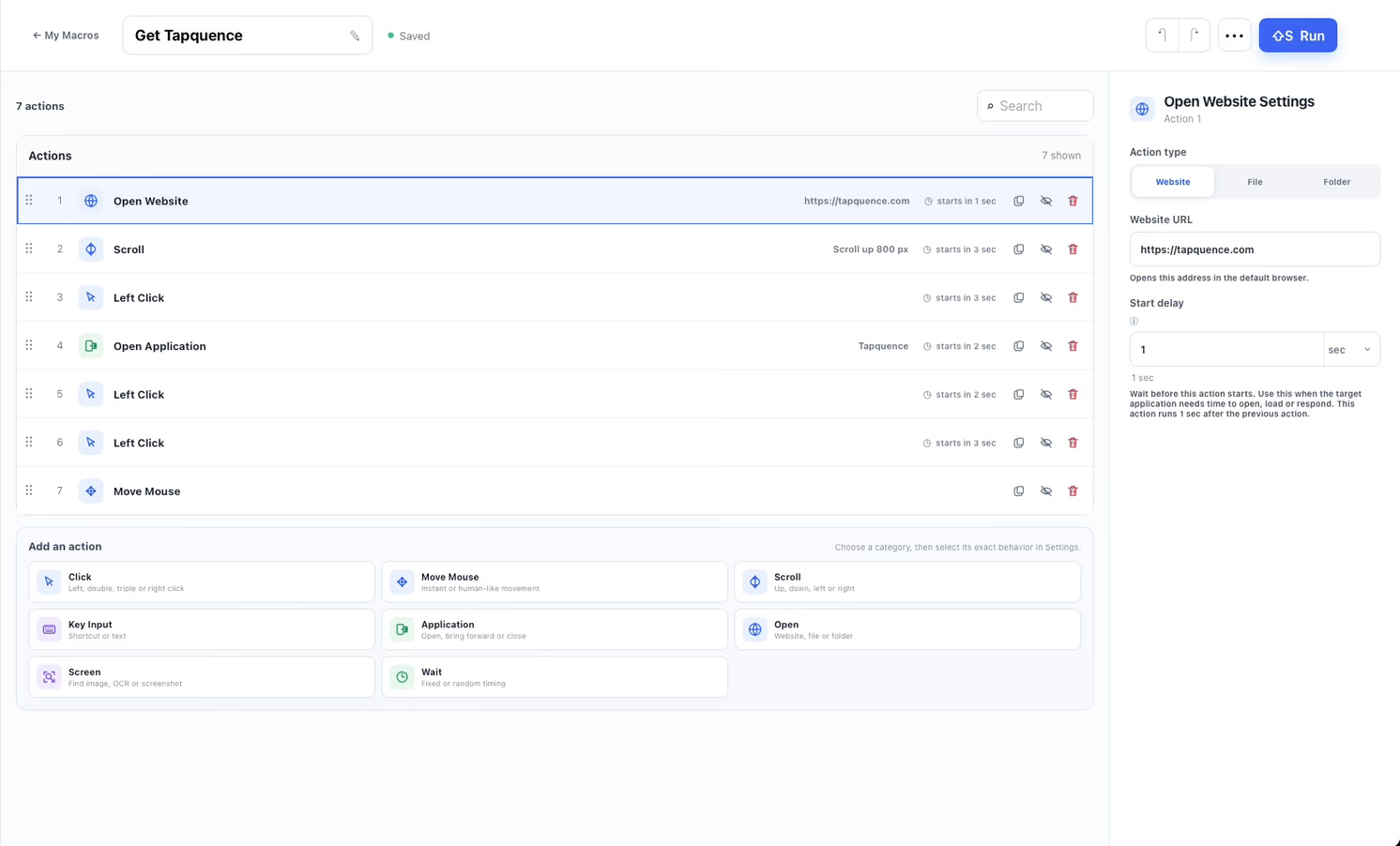
Short answer: To build a macro on Mac with Tapquence, create a macro and add the mouse, keyboard, timing and application actions the workflow needs. Tapquence keeps those actions visible and editable. It does not create an unexplained continuous recording of everything you do.
A useful macro is not just a recording. It is a sequence you can understand, test and stop.
What is a visual macro on Mac?
A visual macro is a sequence of individual actions that you add and configure. Each step stays visible so you can review it before running the workflow.
Tapquence uses a more deliberate model. A macro contains individual actions such as moving the pointer, clicking, pressing a shortcut, typing text, waiting or opening an application. You can inspect the order and settings before the macro runs. This makes the workflow easier to maintain when one step changes.
For an overview of the available action types, visit Macros for Mac.
How Tapquence builds a macro
Start with one outcome that can be described as a short sequence. Create a macro, give it a recognizable name and add the actions in the order they should happen. Each action stays visible in the editor and can be moved, disabled, duplicated or adjusted.
A workflow might activate an application, wait for its window, click a known position, type a value and press Enter. The editor also supports groups and repeat controls for sequences that need structure. Keep the first version short so that a failed step is easy to find.
Add and capture mouse actions
Mouse actions can move to a screen position and perform a left, double, triple or right click. When you add an action, capture the intended position from the actual target instead of estimating its coordinates.
Coordinates depend on the window position, display arrangement and layout. A captured click does not understand the meaning of the control underneath it. Keep the target app in a predictable state and recapture the position after a layout or display change. For repeated clicking on one fixed point, the bounded Auto Clicker may be a better fit than a longer macro.
Add shortcuts and typed text
Keyboard actions can press a shortcut or type the text you provide. Shortcuts are often more stable than clicks when the target application exposes a consistent command. Typed text is useful for harmless repeated values, search queries and predictable form fields.
Do not place passwords, access tokens or other secrets in a reusable macro. The text is part of the workflow you can inspect. Use a placeholder during testing and enter sensitive information manually when the real process begins.
The clicks and keystrokes guide walks through a small test sequence.
Control waits, groups and repeats
Most unreliable macros fail at transitions. An application may need time to open, a page may still be loading or a menu may not be ready for the next shortcut. Add a fixed wait when the delay is predictable, or a random wait when a small timing range better matches the workflow.
Groups keep related actions together. Repeat controls rerun the sequence you choose, but they should be added only after one complete run succeeds. Start with a generous wait and one repeat. Reduce timing or increase the count later, one change at a time.
Test the macro before relying on it
Use a harmless target and run the workflow once. Watch the pointer, window focus and text destination. Keep the stop shortcut available, and confirm that the expected final state appears before adding any repetition.
If the result is wrong, disable later actions and find the first step that fails. Check Accessibility permission, the installed app copy, the active window, the captured position and the wait immediately before that step. The troubleshooting guide provides a focused checklist.
Choose a template or build your own macro
A purpose-built Smart Routine is better when Tapquence already supports the outcome directly. Workday Launcher, Screenshot Organizer, Presentation Mode and Meeting Mode understand their specific settings more clearly than a collection of blind clicks would. Choose the smallest current feature that explains exactly what it will do.
Next macro topics
After building one reliable sequence, review Mac automation timing and the dedicated keyboard input automation page.
Put this workflow into practice
Explore Visual Macros · Build a first macro · Try a key-sequence template
Questions about how to build a macro on mac without coding
Clear answers about this topic and how Tapquence works.
Can Tapquence record every action I perform on my Mac?
No. Tapquence macros contain visible actions you add and configure.
Can I capture a mouse click position?
Yes. Add a mouse action and capture the position from the intended target. Test it again after changing the window position, display arrangement or application layout.
Should I store passwords in a macro?
No. Use placeholders or harmless sample text while testing and enter sensitive credentials manually.
How should I test my first Mac macro?
Use a harmless target, one complete run, generous waits and the stop control. Add repetition only after every action succeeds in the expected order.
