Troubleshooting
Resolve recording, detection and Mac permission issues.
Frequently asked questions
The essentials, without leaving this page.
Why are clicks or keys not being executed?
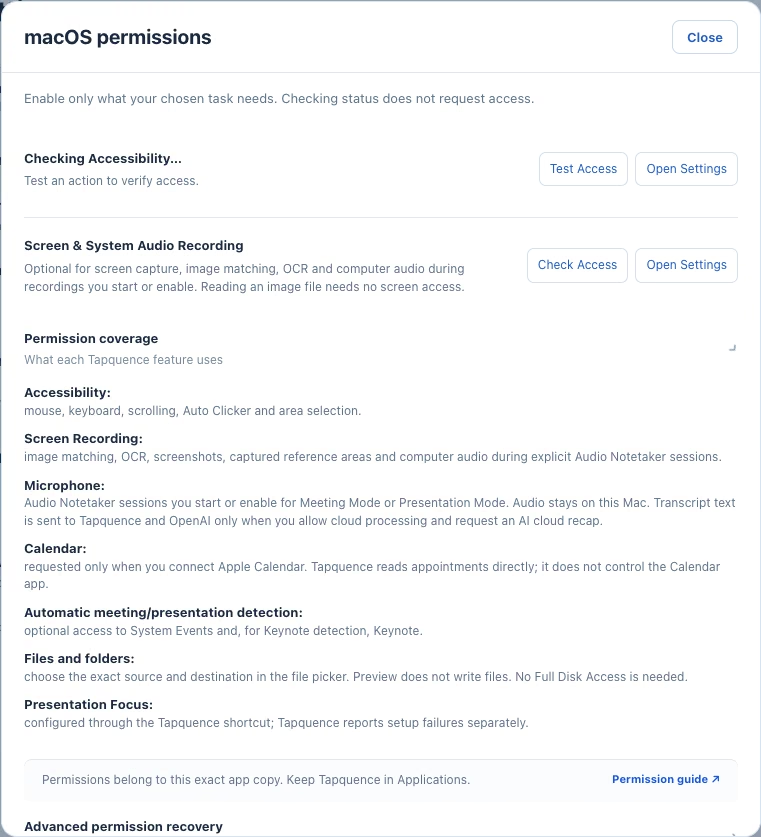
First confirm that Tapquence is installed in Applications and enabled under Privacy & Security → Accessibility. Reopen Tapquence after changing permissions. Also check that the target application is open, the action is enabled and the selected position or key sequence is valid.
Permissions are enabled, but Tapquence still says access is blocked. What should I do?
Quit Tapquence completely, remove its existing Accessibility entry, reopen the installed copy from Applications and grant access again. If macOS still retains an outdated permission record, resetting Tapquence’s privacy permission and granting it again can resolve the mismatch.
Why did my target application not receive the action?
The target may have closed, changed windows, moved to another desktop or blocked automated input. Refresh the target application list, select the intended app again and test with a simple click or key action before running the full macro.
Why is my meeting not being detected?
Open Meetings and check the detection status. Resume detection if it is paused, and resolve any permission error shown there. Start the call or presentation in a supported app as usual.
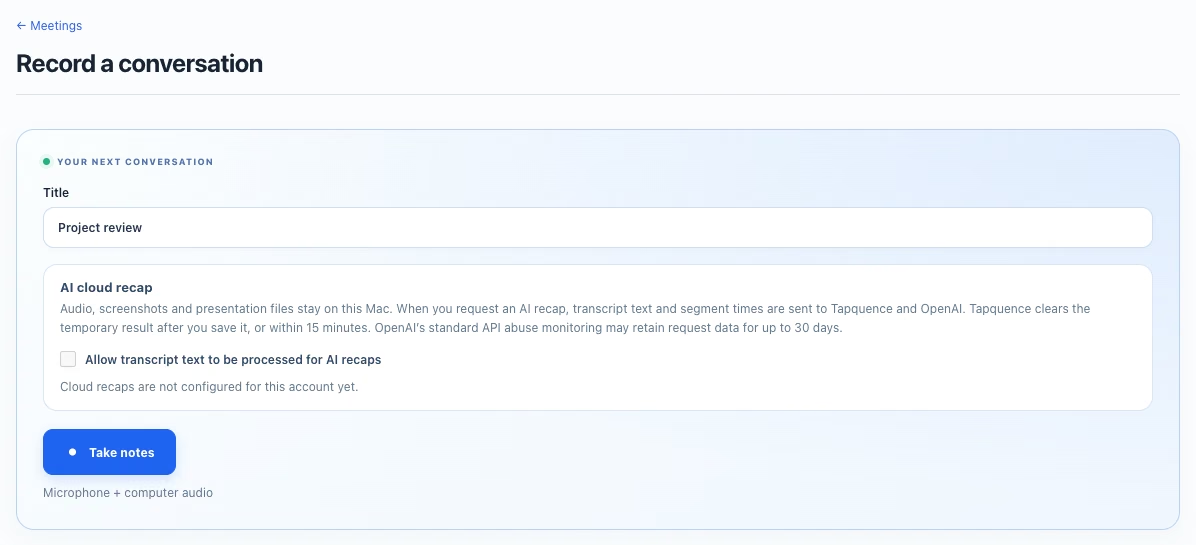
If the app or browser session is not recognized, start “Record a conversation” manually. Automatic detection availability also depends on your plan; manual recording and saved recaps remain separate features.
Why is my first transcript taking longer?
The first transcription may need to prepare the local speech model. Keep Tapquence open and allow the initial download to finish; an internet connection is needed to prepare the model.
After setup, transcription is processed locally. Check the session’s status for progress or an error. A longer recording takes more time to process; the audio is saved before model preparation.
