
What Can You Automate on a Mac? 8 Practical Examples
Eight practical ways to automate repetitive work with the current Tapquence Mac app, from clicks and data entry to screenshots, workday setup and routine discovery.
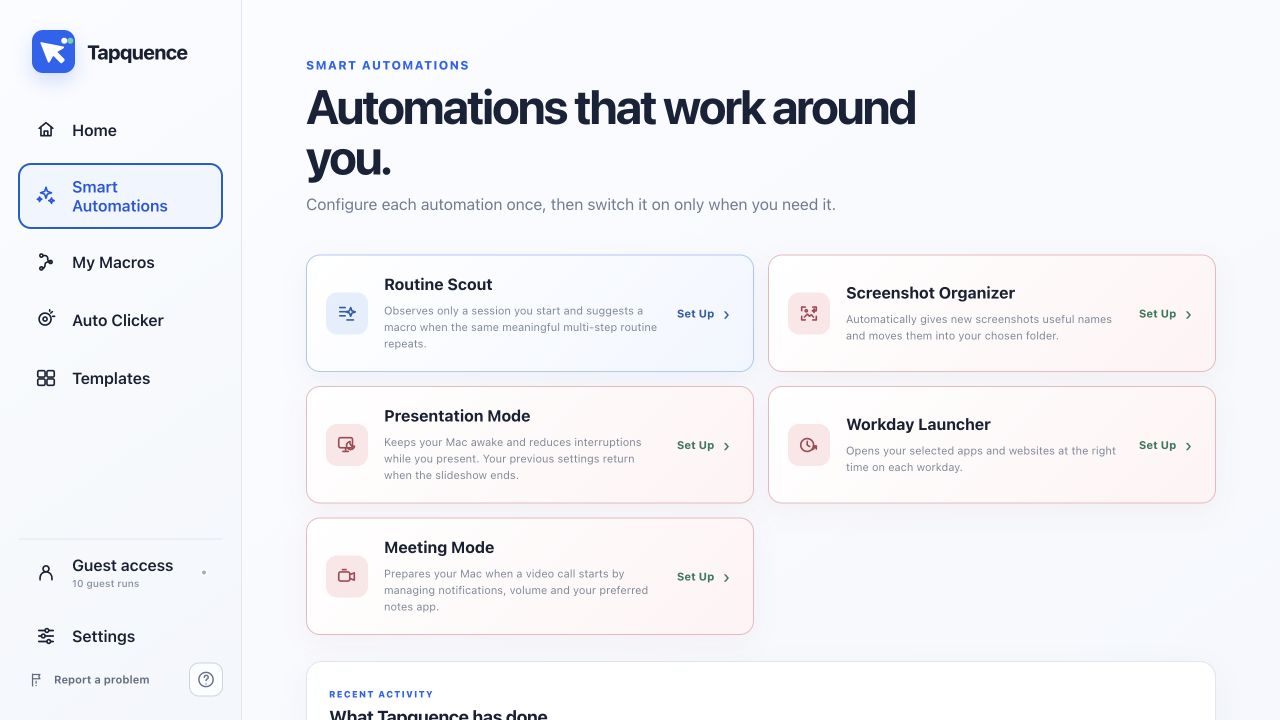
Short answer: You can automate repetitive Mac work when the starting point, actions and expected result are predictable. In Tapquence, that includes repeated clicks, keyboard sequences, form entry, scheduled workspaces, screenshot organization, presentation and meeting preparation, and routines you explicitly ask the app to observe.
The best first automation is not necessarily the task that takes the longest. Start with something you repeat often, can test safely and can describe as a clear sequence. Tapquence keeps the actions visible so you can review what will happen before you run it.
Automate one predictable outcome first. Prove that it works, then expand the workflow.
What Mac tasks can you automate?
A good automation candidate has a recognizable starting state, a small number of repeatable actions and an outcome you can verify. Examples include clicking the same control several times, entering the same type of information into a stable form, opening a set of work apps every weekday or moving new screenshots into a chosen folder.
Tasks that depend on judgement, frequently changing layouts or irreversible decisions need more caution. Tapquence can perform the mouse, keyboard, timing, application and file actions you configure, but it does not decide whether the result is appropriate. You remain in control of the target, data and moment the workflow runs.
Repeat mouse clicks with clear limits
The dedicated Auto Clicker is designed for a bounded repeated click. You choose the mouse button, click position and either a rate or interval. You also define a count or duration limit and keep the stop control available.
This is useful when one stable control must be clicked repeatedly and the application permits automation. It is not a visual decision-maker: if the target moves or the wrong window gains focus, Tapquence cannot infer the intended replacement. Start slowly on a harmless target and confirm the position before increasing the rate.
See how the current Mac Auto Clicker works or review the timing options for repeated clicks.
Build mouse and keyboard workflows
A Tapquence macro is a visible sequence of actions. The current editor can combine mouse movement, left, double, triple and right clicks, keyboard shortcuts, typed text, fixed waits, random waits and application actions. Actions can be reordered, disabled and grouped before a run.
For example, a macro can open or activate an application, wait for it to become ready, click a known position, type text and press Tab or Enter. Timing remains explicit, which makes the workflow easier to inspect than an unexplained recording.
Because screen coordinates and application focus can change, test one action and one repeat first. Explore mouse and keyboard automation on Mac or start with an editable template.
Automate repetitive data entry
Stable forms are a practical use case for short macros. A basic sequence can click the first field, type or paste a value, press Tab and repeat. The Form Helper and Repetitive Data Entry templates show this structure with editable actions and timing.
Tapquence does not read a form semantically or validate the information you enter. Use non-sensitive sample data, reduce the repeat count to one and verify that focus advances to the correct field. If the form layout, browser zoom or display changes, capture the target again before relying on the workflow.
Open the Form Helper template or compare it with the shorter Repetitive Data Entry workflow.
Organize new screenshots automatically
Screenshot Organizer is a purpose-built Smart Automation. It watches the macOS screenshot location, processes only new supported image files and moves them into a destination folder you choose. Optional smart naming uses local Apple Vision, with a fallback filename pattern when a useful name is unavailable.
You control the destination, naming behaviour and whether the watcher is active. Tapquence handles duplicate filenames safely and shows recent activity locally. It cannot organize screenshots stored somewhere it cannot access, and it does not upload the files to Tapquence.
Review Screenshot Organizer and follow the current setup guide.
Open apps and websites on a schedule
Workday Launcher can prepare a recurring workspace on selected weekdays. Choose one shared start time or a different time per day, then add installed applications, individual websites and reusable Website Sets. While Tapquence is running, the launcher opens the configured workspace once for that scheduled day.
This is a better fit than a long click macro when the outcome is simply to open known resources. Launch at Login is recommended so Tapquence is available at the chosen time. The launcher does not sign in, complete work inside those apps or reopen the same schedule repeatedly throughout the day.
See Workday Launcher or use the editable Workday Launcher starting point.
Prepare presentations and meetings
Presentation Mode can open a selected deck, supporting websites and an optional supported meeting source. It can keep the display awake, adjust volume and, when configured correctly, silence notifications. Temporary Mac settings are restored when Presentation Mode stops.
Meeting Mode responds to an active supported video meeting. With your approval it can keep the Mac awake, change notification behaviour, set an output volume and open a notes application. It restores the previous state after the call ends. Tapquence never joins a meeting or presents a deck on your behalf.
Compare Presentation Mode with Meeting Mode before choosing the workflow that matches your situation.
Discover a routine and choose where to start
Routine Scout is for repeated click-and-shortcut patterns you have not yet translated into a macro. You explicitly start a temporary observation session for 5 to 60 minutes. Tapquence looks locally for a stable sequence and, when its rules are satisfied, produces a suggestion for you to inspect.
Routine Scout never starts a macro itself. Secure fields and sensitive system applications are excluded, and a suggestion only becomes a macro after you review it. This makes routine discovery a starting point rather than an unattended automation.
For your first automation, choose the smallest example on this page that has a harmless test target. If a purpose-built Smart Automation already matches the outcome, use it. Otherwise open the closest template and edit a copy. Build a custom macro only when the steps are specific to your workflow.
See how Routine Scout works, browse the current Smart Automations or continue with the Mac automation guides.
Plan the next workflow
If you want to understand the macro-building path first, read how to record a macro on Mac. If the task is mostly opening the same workspace each day, review how to open apps and websites on a schedule.
Copy and paste repeated values
Copy and paste work becomes a useful automation candidate when the source, destination and order stay predictable. Examples include moving a list of identifiers from a spreadsheet into a stable admin form, copying prepared descriptions into several records or entering one URL at a time into an internal tool.
The workflow should make every transition visible. Start at a known field, insert the current value, move to the next control and wait for the interface to confirm that it is ready. A Tapquence Repeat Block can run the same steps for a fixed count or for a list you paste into the workflow. Inside an item Repeat Block, {{current_item}} represents the value for the current pass.
Read how to automate copy and paste tasks on Mac before using a longer list.
Automate stable browser administration
Browser administration often repeats the same small sequence across records: open a page, select a control, enter a value, save and continue. Tapquence can combine clicks, keyboard input and waits when the interface permits automation and the target remains stable.
Browser timing is less predictable than a local static window. Add a Wait after navigation, or use Image to Wait with a stable positive visual state when a page can take different amounts of time. Do not use browser automation for scraping, spam, bypassing access controls or activity that violates a service's rules.
See the full browser task automation guide.
Combine data entry with repeat controls
Data entry is more than typing the same text. A dependable workflow includes the starting field, field order, page timing, final state and a clear stop condition. Fixed lists work when the values and count are known in advance. Dynamic lists work when the user pastes a new set of items for each run.
Start with sample data, one record and a reversible destination. Then test the second item to confirm the workflow returns to the same starting state. Continue with how to automate data entry on Mac.
Organize files as part of a larger routine
File organization can be a purpose-built automation or one stage in a broader desktop workflow. Screenshot Organizer is the clearest Tapquence example: it handles new supported screenshots, creates a useful local name when available and moves the file to a chosen folder.
For broad rules that continuously monitor many folders and file attributes, a dedicated file rules tool may be a better fit. Tapquence is useful when file handling connects to other visible desktop steps. Read how to automate file organization on Mac.
Open apps and websites before work begins
Not every automation needs to operate inside an application. Workday Launcher can prepare a known workspace by opening selected apps and trusted websites on chosen weekdays. This removes a repeated setup routine while leaving sign-in, decisions and work inside each app under your control.
Presentation Mode and Meeting Mode use the same principle for bounded sessions. They prepare supported resources and temporary Mac settings, then restore supported settings when the session ends.
When not to automate
Keep the workflow manual when the task depends on judgement, a changing interface, sensitive data without a safe test environment or an irreversible decision. Automation also needs maintenance. Retest after application updates, layout changes and permission changes.
If the task can be described but not tested safely, that is a reason to stop. Review Mac automation software for repetitive desktop work to compare which kind of tool fits the job.