
Before you start
Use the installed Tapquence app. Review the current Tapquence screen and the requirements above before changing anything.
- Tapquence in Applications
- Administrator access
- Tapquence closed first
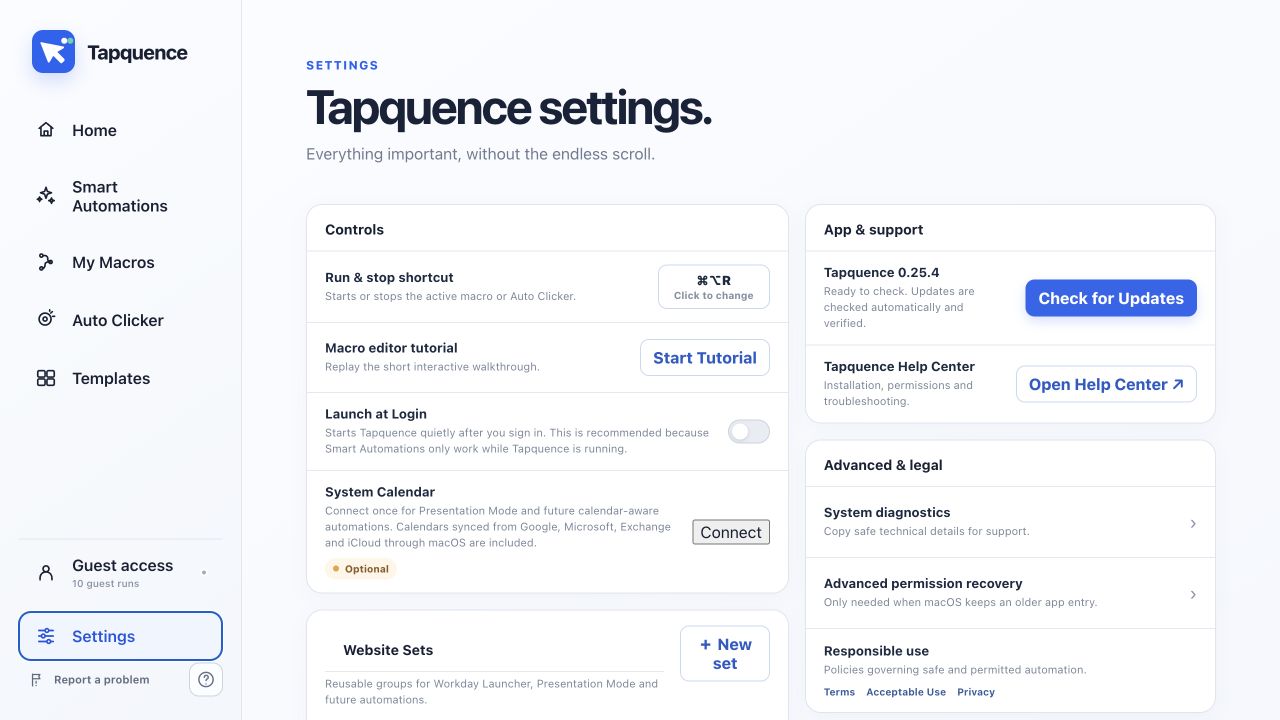
Open permissions
Choose Fixed or Dynamic
Use List Filler | Fixed when the same reviewed action sequence should run an exact number of times. Use List Filler | Dynamic when every pass should use the next line from a pasted list.
Build one reliable pass first
Keep the field action, navigation key and timing action inside the Repeat Block. Test one harmless row before raising the count or pasting the complete list. Dynamic mode types {{current_item}}; {{line_number}} and {{total_items}} are also available.
Use Wait for predictable timing
A normal Wait is appropriate when every field or row becomes ready after a consistent minimum delay. Start generously and shorten the delay only after repeated tests remain dependable.
Use Image to Wait for variable page loads
Put Image to Wait inside the Repeat Block after the action that starts loading. Capture a small, stable ready-state such as the empty next field, a loaded button or a finished spinner state. Avoid changing text, timestamps and large screen regions.
Choose timeout behaviour deliberately
Dynamic workflows can skip the current item after a timeout and record the item and failed step in the run report. Fixed workflows should normally stop, because continuing without the expected screen state can shift every following action.
Test and troubleshoot
Run two harmless items, keep the stop shortcut ready and verify the fields. If a run fails, inspect the first failed item and action, confirm focus, recapture the visual target and change one timing setting at a time.
Privacy and sensitive data
List items and macro actions stay on the Mac. Do not store passwords or security codes in macro text.
Verify access
Run the smallest useful example once and verify the result before enabling repetition or relying on the complete workflow.
Fix stale access
Confirm the installed app, target, folder or meeting is the one described in this guide.
Reduce the workflow to the smallest failing action and change only one setting at a time.
Use harmless data, add more time where needed and keep the stop control available.
Continue learning
Continue with the matching Tapquence feature or move through the guide sequence.
Open List Filler | DynamicSee how this guide connects to the actual workflow.›