ARTICLE
Auto Typer on Mac: Build a Clear, Tested Text-Entry Workflow
Tapquence Editorial
·
3 min read
Editorial week of
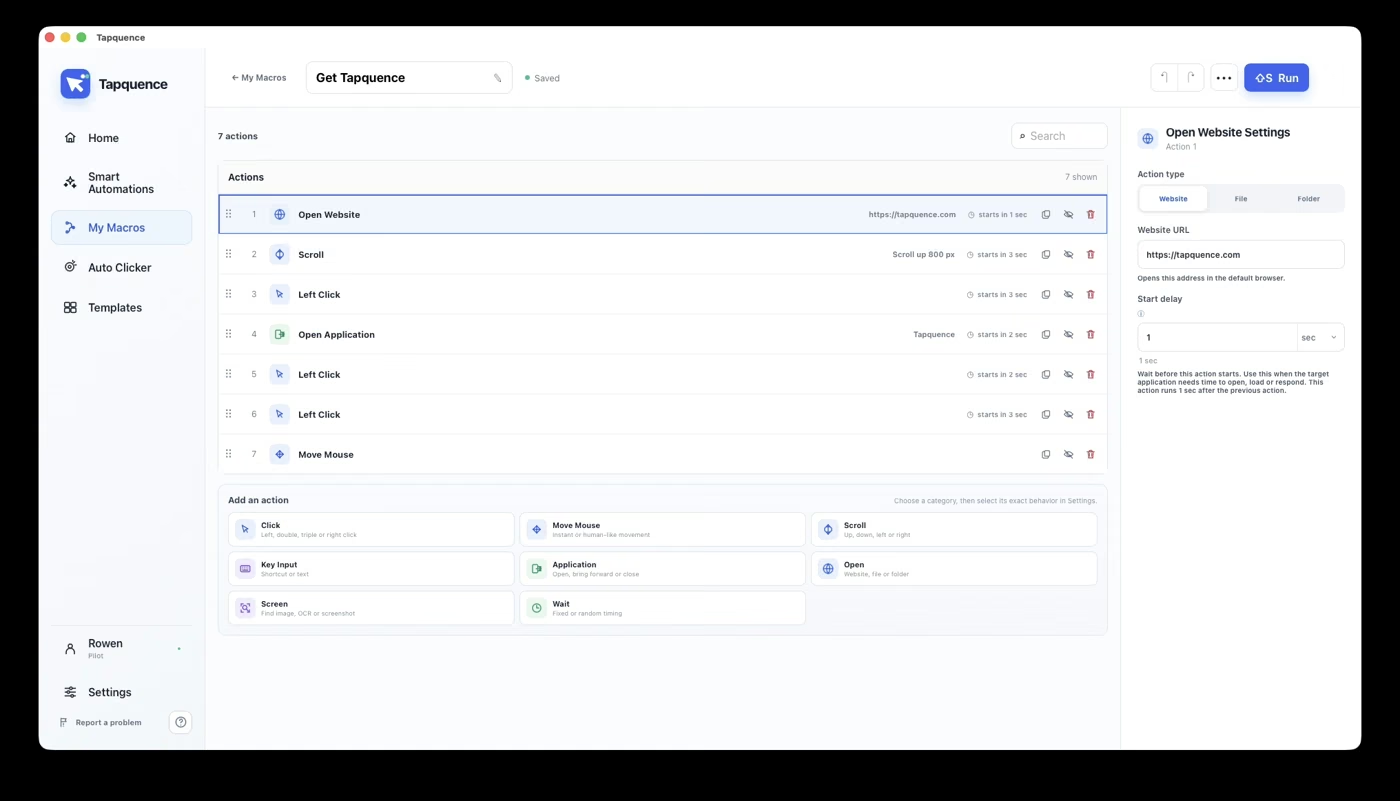
An example of editable actions in the macro editor. The displayed sequence is not the data-entry recipe in this article.
KEY TAKEAWAY
Fixed typed text, clipboard input and changing list values are different models. Make the source explicit.
An auto typer on a Mac can enter text as part of a repeatable workflow. The important question is where that text comes from and which field should receive it. A visible text action is different from a system-wide abbreviation expander.
Start with one harmless phrase in a test destination. Once that works, add the navigation and repetition the real task requires.
1. Choose the input model
Use fixed typed text when every pass needs the same phrase. Use an explicit list or table workflow when values change. If the source is the clipboard, account for anything that could replace its content before the paste.
Three different text-entry needs
Need
Configure
The same phrase
A reviewed fixed text action.
A different item per pass
Item input and the intended current-item value.
A keyboard shortcut
A shortcut action rather than literal typed characters.
A sequence that types the words “Command V” is not the same as sending the paste shortcut. Review the action mode before testing.
2. Build one text action
Visual Macros supports typed text alongside clicks, shortcuts and waits. Build a small sequence whose destination you can see and whose output is easy to check.
Open a disposable document or test form.
Select the intended empty field.
Add the sample text in the appropriate text-entry action.
Run once and inspect the complete result.
TEXT-ENTRY TEST
Harmless sample
Text
Project review (draft)
Target
The selected empty test field.
Expected result
The phrase appears once, in the intended field.
Not included
No automatic submit or message send.
3. Control focus and navigation
Text goes to the application and field that actually receive input. Bring the target into focus, confirm the position and allow time for it to become ready. A click captured for one window arrangement may not match another.
Test Tab and Enter manually before adding them. Depending on the destination, they may move between fields, insert a line break or submit a form. Do not carry assumptions from one application into another.
The Repetitive Data Entry template can provide a small starting sequence. Its sample actions need to be adapted; a template is not proof that the target form behaves the same way.
4. Add repetition deliberately
If each pass should replace a value, include a tested clearing or selection step. Otherwise, repeated typing may append the same text. Keep the first repeat bounded to two or three passes and inspect each result.
For changing values, use the Repeat Blocks guide to configure item input. A fixed repeat count does not automatically advance a source list. Confirm what supplies the text on every iteration.
Before increasing the count
The correct field receives the complete text.
Old content is handled deliberately.
Navigation lands in the expected place.
Each pass uses the intended source value.
The stop control remains available.
5. Choose the smallest dependable workflow
Fixed text in a visual sequence is useful when input forms part of a larger task. It is not a claim that every abbreviation expands in every app, or that the macro understands a document’s business meaning.
For clipboard-driven tasks, review the existing copy-and-paste article. For several records, review the data-entry workflow. Test one clear outcome before building a longer sequence.
