TAPQUENCE SUPPORT
Can I automate mouse clicks and keyboard sequences?
Build and test a small Macro before adding more actions.
A Macro combines actions such as mouse clicks, keys, keyboard shortcuts and waits into one workflow. Start with a small, safe example in an app where you can undo the result.
1. Create a Macro
Open Macros and create a new workflow. Give it a recognizable name. Choose a supported target app when the workflow needs one, and keep that app open while testing.
2. Add one action at a time
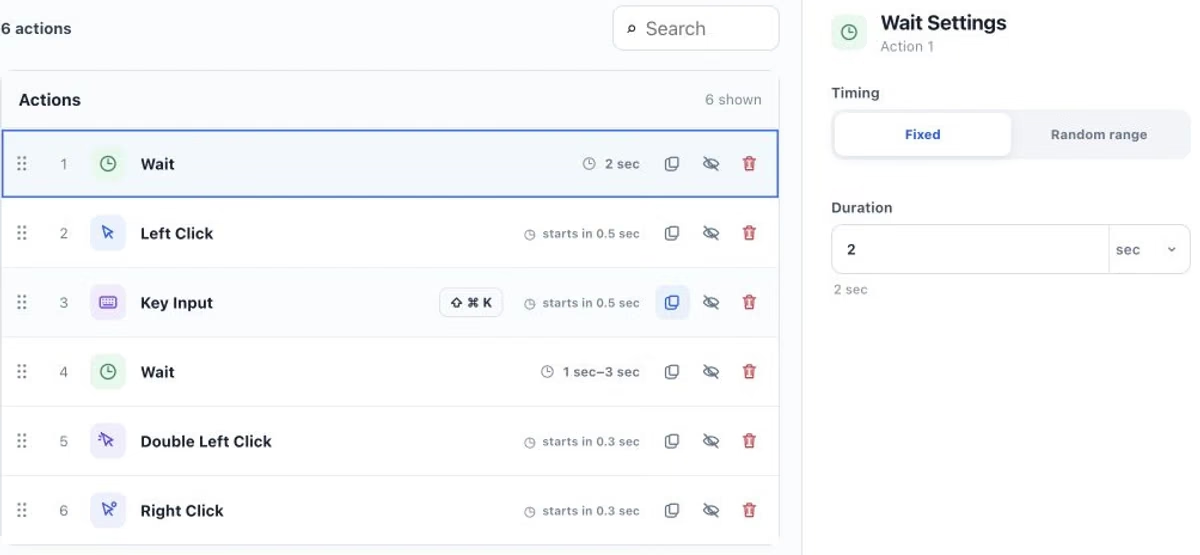
Add the click, key or keyboard shortcut you need. Check the selected position or key sequence, then test that action before adding the next one. Actions can be reordered and given their own timing.
3. Give apps time to respond
Place a wait between actions when a window needs to open, a page needs to load or a menu needs to appear. Tapquence supports fixed and random waits. Choose timing that fits the app’s actual response rather than running a long untested sequence.
4. Run a small test
Use a short sequence and a low repetition count first. Watch the result and keep the stop control or shortcut available. If the target app changes windows, moves to another desktop or blocks input, stop and reselect the target before trying again.
If nothing happens
Check that Tapquence is in Applications and has Accessibility permission in System Settings → Privacy & Security. Reopen the app after changing access if needed. Some apps restrict automated input; always follow their rules and your organization’s policy.
