
How to Automatically Open Apps and Websites on a Schedule on Mac
Use Workday Launcher to open selected Mac apps and trusted websites on chosen weekdays, with shared or per-day start times and a safe manual test.
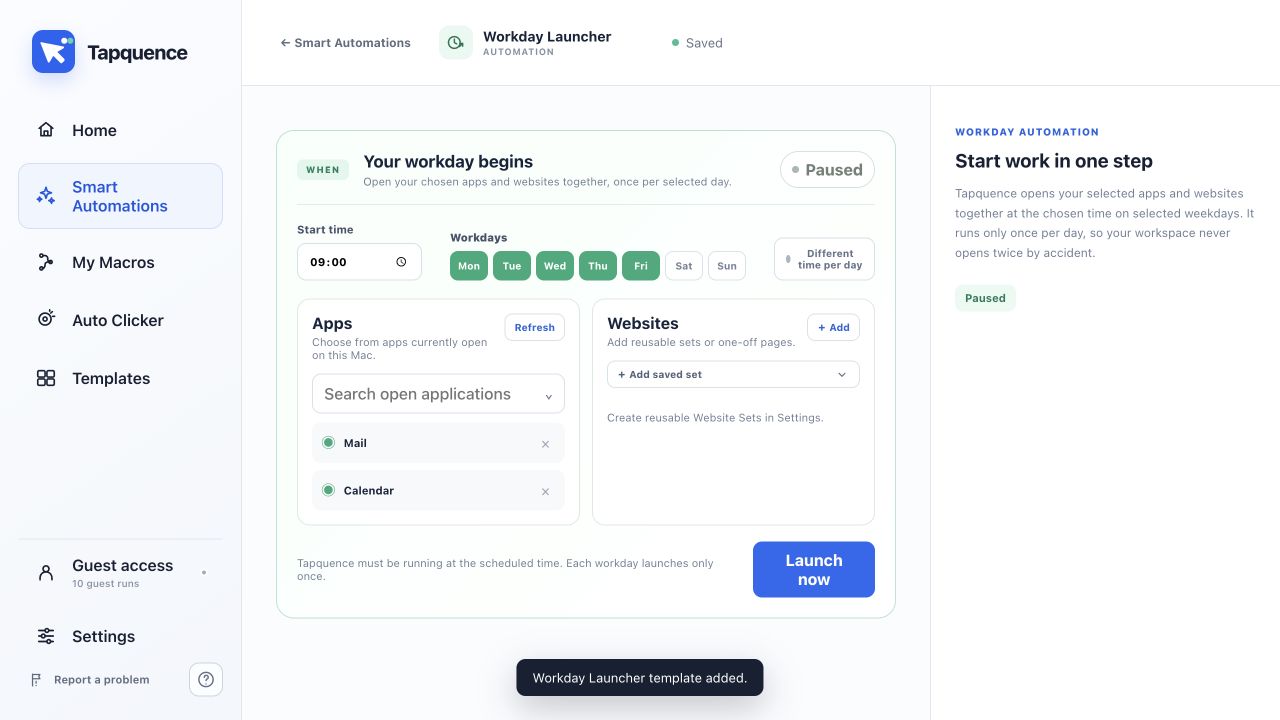
Short answer: Workday Launcher can automatically open selected Mac applications and trusted websites on the weekdays and times you choose. You can use one shared start time or configure a different time for each selected day.
Tapquence must be running when the scheduled time arrives. The launcher prepares the workspace once for that scheduled day. It does not sign in, complete tasks inside the apps or make decisions on your behalf.
Schedule the workspace you need, then keep control of the work that happens inside it.
Can you schedule apps and websites to open on Mac?
Yes. Workday Launcher is a purpose-built Tapquence Smart Automation for recurring workspace setup. Choose the weekdays, set a start time and add the installed apps, website URLs or reusable Website Sets you want available.
This is useful for a regular workday, study session or recurring administrative routine. It is clearer than a long mouse macro because the schedule and resources are represented directly. Review the current feature page at Workday Launcher.
How Workday Launcher works
When Tapquence is running and a selected scheduled time arrives, Workday Launcher checks the configured workspace and opens it once for that day. Applications are selected from installed apps. Websites are opened from the trusted addresses you provide.
You remain responsible for what happens after launch. Tapquence does not enter passwords, navigate through accounts or complete work inside a website. The result is a prepared starting point, not an unattended work session.
Choose weekdays and start times
Select only the weekdays on which the workspace should open. Use a shared start time for a consistent routine, or enable per-day times when Monday and Friday begin differently. Keep the first scheduled test close enough that you can watch it happen.
A schedule runs once for the selected day. It is not a repeating alarm that reopens the same apps throughout the day. If you miss the scheduled launch, use the manual launch control to test or prepare the workspace immediately.
Add installed applications
Add the applications that form the dependable core of the workspace. Choose them from the installed apps available to Tapquence, and remove anything that is no longer needed. A shorter launch set is easier to verify and creates less distraction.
Opening an application is different from operating it. Workday Launcher does not click menus or load a specific internal document unless the app itself handles that state. Use a separate reviewed macro only when additional visible actions are genuinely necessary.
Add websites and reusable Website Sets
Add complete website addresses for pages you trust and expect to use. Website Sets let you reuse a group of pages without re-entering each URL in every supported workflow. They are useful for a project dashboard, reporting set or recurring research workspace.
Open every address manually before adding it, remove obsolete pages and avoid URLs that contain sensitive tokens. A website may still require authentication when it opens. Tapquence does not bypass that step.
Keep Tapquence available with Launch at Login
Workday Launcher can only respond to the schedule while Tapquence is running. After a successful manual test, enable Launch at Login if you want the app to be available after the Mac starts. Keep the automation itself disabled until the workspace and times are correct.
If the Mac is asleep, turned off or Tapquence is not running at the scheduled moment, the launcher cannot prepare the workspace. Treat the schedule as a convenience that depends on the Mac being available.
Test the schedule safely
Start with one test weekday, a nearby time, one application and one harmless website. Use the manual launch control first and confirm both resources open as expected. Then observe one scheduled launch before adding the rest of the workspace.
If something does not open, check that the application is still installed, the website address is valid and Tapquence is running. The Workday Launcher guide covers setup, testing and common failure points.
Understand limits and when to use Presentation Mode
Workday Launcher prepares recurring resources. It does not sign in, type into applications, close distractions or complete the next task. Keep decisions and sensitive actions under manual control.
Use Presentation Mode when the goal is to prepare a specific deck, supporting pages and an optional meeting source while temporarily managing presentation-related Mac settings. The Presentation Mode template shows that different structure. Use the Workday Launcher template for a recurring daily workspace.
Related scheduling resources
If your scheduled workspace opens a repeated browser task, the data entry automation guide explains how to test form-like steps safely.